
To effectively troubleshoot hardware issues, knowing how to print a Mac printer test page is vital for verifying driver integrity and hardware communication. You can manage your print queue via System Settings or access the advanced CUPS (Common Unix Printing System) web interface at localhost:631 for deeper diagnostics. This process helps identify issues within the print spooler or local network IPP handshake. For physical maintenance, executing a nozzle alignment or head cleaning through the utility dashboard addresses banding and ink delivery failures. Utilizing these internal diagnostic tools ensures your macOS environment maintains optimal handshake protocols with your peripheral, streamlining document processing and resolving common output errors.
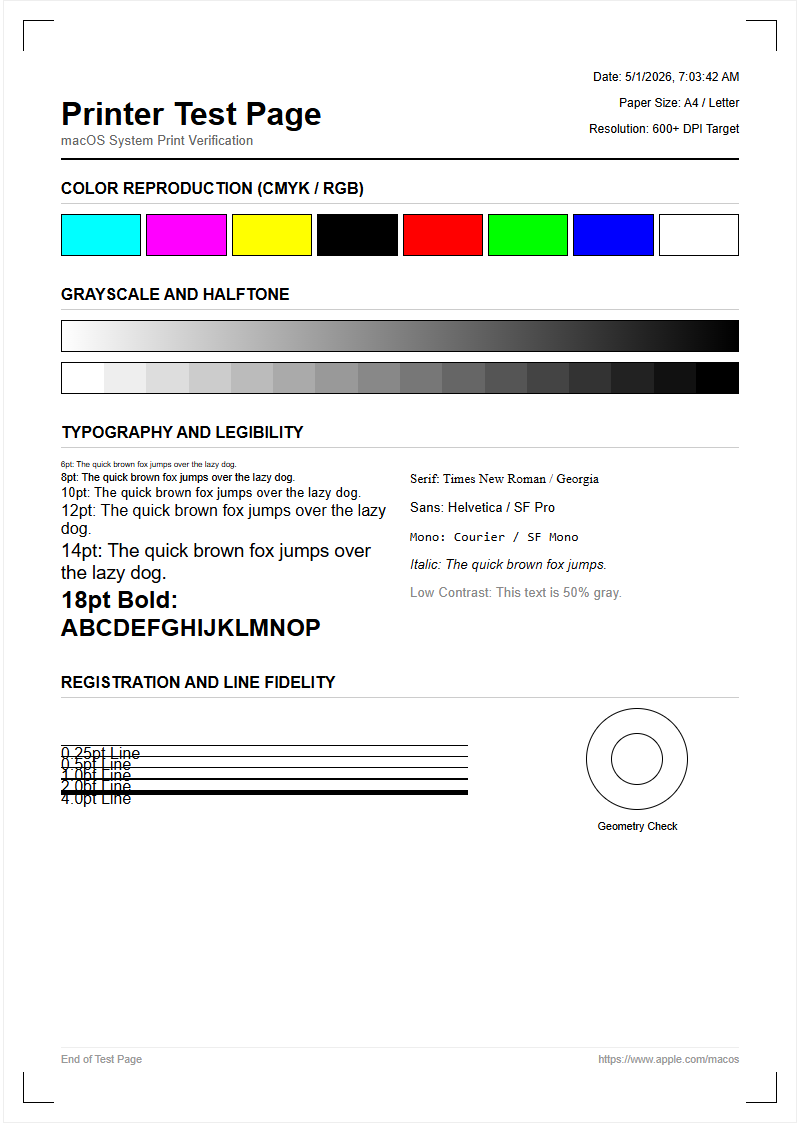
macOS Printer Test Page Instructions
Initiating a printer test page on macOS is the primary diagnostic step to confirm that the communication bridge between your Mac and the hardware is intact. Unlike Windows, macOS often buries this feature within the print queue utility rather than the main system dialogs. To begin, navigate to the Apple menu and select System Settings, then locate the Printers & Scanners section. After selecting your active device, click on "Open Print Queue." Once the queue window is visible, look at the top menu bar under "Printer" to find the "Print Test Page" option.
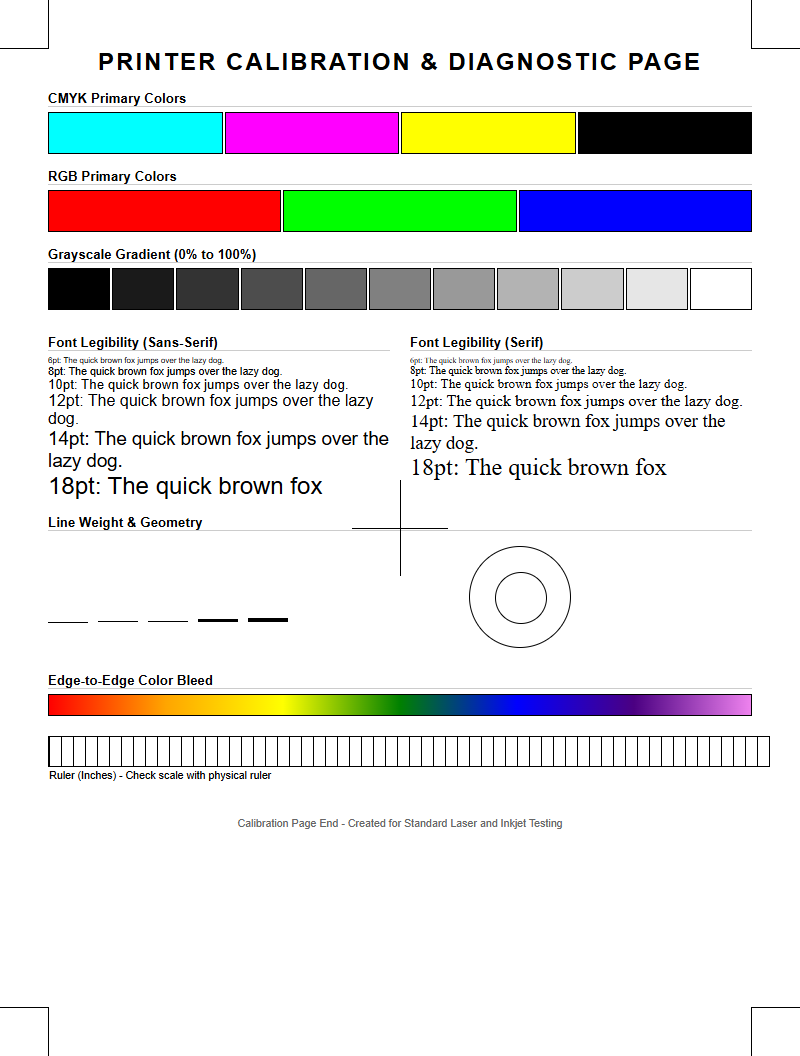
This document serves as a baseline for verifying several critical parameters:
- Verification of the PostScript or PPD driver version currently in use.
- Confirmation of the hardware handshake over USB, Wi-Fi, or Ethernet.
- Initial assessment of ink or toner distribution across the page.
- Validation of the printer's internal font rendering capabilities.
Executing this command bypasses complex application-level settings, sending a standardized set of instructions directly to the printer's firmware to ensure the device is operational.
System Settings Print Quality Check
The System Settings interface provides a gateway to native maintenance utilities that are essential for ongoing print quality management. When you observe faint lines or color inaccuracies, the "Options & Supplies" button within the Printers & Scanners pane becomes your primary tool. Within the Utility tab, macOS allows users to launch the printer's proprietary maintenance software, which facilitates deep cleaning cycles and nozzle checks. These tools are vital for maintaining the integrity of the print head and ensuring that the microscopic ink nozzles are not clogged by dried residue.
Common quality metrics to evaluate during this check include:
- Vertical and horizontal line alignment to prevent "stair-stepping" or jagged edges.
- Solid color block density to ensure even toner or ink distribution.
- Paper feed calibration to avoid skewed margins or paper jams.
Regularly performing these checks through the macOS interface ensures that the hardware performs at its rated DPI (dots per inch), preserving the professional appearance of high-resolution documents and photographic prints.
CUPS Web Interface Printer Management
For advanced users, the Common Unix Printing System (CUPS) offers a powerful web-based backend to manage the macOS printing environment. By default, the web interface is disabled for security reasons, but it can be activated via the Terminal using the command cupsctl WebInterface=yes. Once enabled, navigating to http://localhost:631 in a web browser grants granular control over printer classes, job histories, and administrative settings that are often obscured in the standard GUI.
| Feature | Functional Benefit |
|---|---|
| Job History | Allows reprinting or auditing of past documents. |
| Set Allowed Users | Restricts printing access to specific macOS accounts. |
| Raw Queue Control | Enables sending direct commands to the printer. |
The CUPS interface is particularly useful for troubleshooting "Filter Failed" errors, as it provides access to the error log files which detail exactly where the rasterization process was interrupted during the print job.
Troubleshooting Mac Printing Errors
Printing errors on macOS often stem from a disconnect between the Quartz graphics layer and the printer's driver. Common issues include the "Offline" status even when the device is powered on, or the "Filter Failed" message which indicates a crash in the rendering software. Troubleshooting should begin with a verification of the print spooler status. If the queue is stuck, pausing and resuming the printer can often clear a temporary software hang. Additionally, checking for "Sandboxing" errors in the Console app can reveal if macOS security protocols are preventing the driver from accessing system resources.
Key areas to investigate during a failure include:
- The physical connection or the IP address consistency for network printers.
- Driver compatibility with the current macOS version (Intel vs. Apple Silicon).
- The integrity of the PPD (PostScript Printer Description) file.
If these steps fail, checking the "error_log" within the CUPS directory can provide a technical breakdown of the communication breakdown, allowing for a more targeted fix.
Color Calibration Test For Mac
Achieving color parity between a MacBook's Retina display and a printed page requires precise calibration through the ColorSync Utility. macOS utilizes ICC (International Color Consortium) profiles to translate the RGB light of the screen into the CMYK ink of the printer. A color calibration test involves printing a standardized color wheel or chart to identify shifts in hue, saturation, or luminance. If the printed output appears too warm or too cool, it indicates that the current printer profile is not accurately interpreting the document's color space.
To optimize color output, follow these steps:
- Open the ColorSync Utility to verify the integrity of your installed profiles.
- Use the "Match to Profile" feature to align the printer's output with the sRGB or Adobe RGB standard.
- Adjust the Gamma levels in the advanced print settings to correct mid-tone brightness.
By conducting these tests, professionals can ensure that the "What You See Is What You Get" (WYSIWYG) standard is maintained for graphic design and photography workflows.
Printer Hardware Communication Verification
Verification of the hardware communication layer is essential when a Mac fails to "see" a printer on the network. macOS relies heavily on the Bonjour protocol (mDNS) to discover devices automatically. When this fails, manual verification of the hardware's IP address and port status is required. You can use the Network Utility or Terminal to "ping" the printer's IP address to ensure a stable ICMP handshake. If the printer responds to a ping but not a print command, the issue likely resides in the IPP (Internet Printing Protocol) settings or a firewall blockage on port 631.
Check the following communication parameters:
- Wi-Fi signal strength and frequency (2.4GHz vs 5GHz compatibility).
- USB cable integrity and hub throughput for wired connections.
- AirPrint compatibility for driverless communication.
Ensuring that the hardware is communicating correctly at the network level prevents "Printer Not Found" errors and significantly reduces latency when sending large, complex files to the print spooler.
Evaluating MacBook Print Resolution
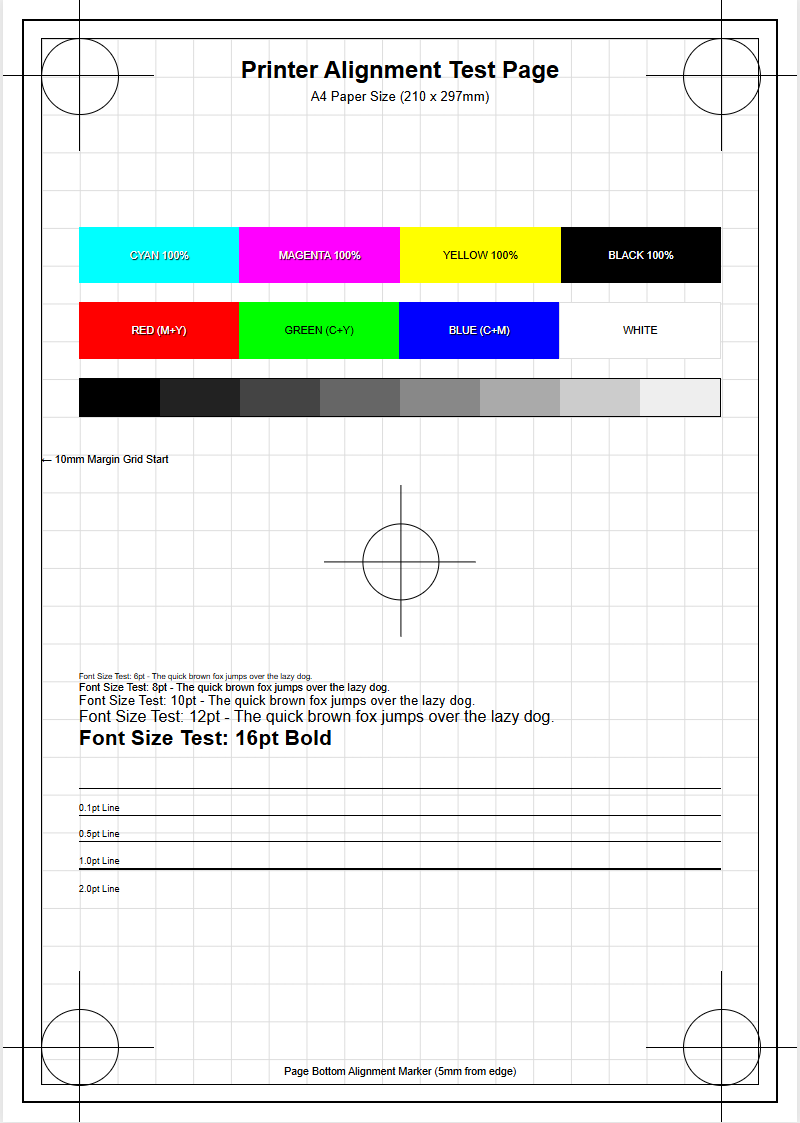
Print resolution on a Mac is handled by the Quartz 2D graphics engine, which manages the rasterization of vector graphics into a bitmapped format for the printer. When evaluating print resolution, it is important to distinguish between the resolution of the source image and the output DPI of the printer. A high-resolution test page should include fine serif text, micro-dot gradients, and sharp geometric shapes to test the precision of the printer's mechanical components. If text appears "fuzzy," the driver might be downsampling the document to 300 DPI instead of the hardware's native 600 or 1200 DPI.
| Resolution Type | Impact on Quality |
|---|---|
| Draft Mode | Low DPI, saves ink, faster speeds. |
| Normal Mode | Standard resolution for text documents. |
| High/Best Mode | Maximum DPI for photo and detailed graphics. |
Testing these modes allows users to understand how macOS handles data compression during the print process, ensuring that the final output meets the required visual standards.
Desktop Printer Driver Maintenance
Driver maintenance on macOS has evolved with the introduction of AirPrint, which often eliminates the need for manufacturer-specific software. However, for specialized tasks like duplexing, stapling, or custom paper sizes, the OEM (Original Equipment Manufacturer) driver is still necessary. Maintaining these drivers involves checking for software updates through the App Store or the manufacturer's support portal. Old drivers can lead to "PDE" (Print Dialog Extension) crashes, where the print menu itself fails to load or behaves erratically. Keeping the PPD files updated ensures that macOS can communicate all hardware features to the user interface.
Effective driver maintenance includes:
- Removing obsolete printer entries from the device list.
- Updating firmware on the printer hardware to fix security vulnerabilities.
- Clearing the printer cache to remove corrupted temporary files.
Proactive driver management reduces the likelihood of software conflicts during macOS version upgrades, providing a seamless transition between different iterations of the operating system.
Ink and Toner Level Verification
Accurate monitoring of ink and toner levels is integrated directly into the macOS printing subsystem. This data is transmitted from the printer's internal chipsets to the Mac via the bidirectional communication channel. To view these levels, users can go to System Settings, select the printer, and click "Supply Levels." This interface provides a visual representation of the remaining consumables, which is critical for preventing "white banding" or color dropouts during a print job. However, users should be aware that third-party or refilled cartridges may not report accurate data if the proprietary chip is missing or incompatible.
Common supply level indicators include:
- Low Ink Warning: Triggered when the cartridge reaches approximately 10-15% capacity.
- Empty/Replace Status: Prevents printing to protect the print head from overheating.
- Maintenance Box Level: Tracks the saturation of the waste ink pad in inkjet models.
Regularly verifying these levels through the macOS interface ensures that you are never caught mid-document with an empty cartridge, maintaining consistent output quality.
Mac Printing System Reset Guide
When all other troubleshooting efforts fail, resetting the macOS printing system is the definitive solution. This action clears all print queues, deletes all printer entries, and resets the underlying CUPS configuration to its factory state. To perform this, right-click (or Control-click) in the empty space of the printer list within System Settings and select "Reset Printing System." This "nuclear option" is highly effective at resolving deep-seated software corruption, particularly after a major macOS update or when multiple conflicting drivers have been installed.
Before proceeding, consider the following consequences:
- All currently configured printers will be removed and must be re-added.
- Pending print jobs in all queues will be permanently deleted.
- Custom presets and specialized paper sizes will be lost.
After the reset, the system is clean, allowing you to re-add your devices using the latest drivers. This process often fixes the most stubborn "Communication Error" and "Filter Failed" messages that traditional troubleshooting cannot reach.

Comments