
Troubleshooting persistent paper jams requires a systematic approach to isolate mechanical wear from electronic malfunctions. By initiating printer test pages, you can observe the media movement through the paper path to identify specific failure points. These diagnostic prints help determine if the pickup rollers or separation pads are losing friction, or if an optical sensor flag is failing to trigger correctly within the registration assembly. Analyzing how the printer handles these internal commands reveals whether the issue stems from a worn feed mechanism or a latent sensor failure. This targeted diagnostic method ensures a precise repair, distinguishing between physical obstructions and timing errors.
Common Printer Paper Jam Locations
Paper jams usually occur at critical transition points within the print path where the media changes direction or speed. The input tray is a primary location where misaligned sheets fail to enter the pickup assembly correctly. As the media travels further, the registration rollers may stall if timing sensors detect a skew in the sheet's orientation. In laser printers, the fuser assembly is a high-risk zone because the intense heat can cause damp paper to curl and wrap around the pressure roller. Another common spot is the duplexer, which flips paper for double-sided printing; this complex U-turn path often traps sheets mid-turn. Finally, the output bin can experience "accordion" jams if the exit rollers are worn or obstructed by previously printed documents. Identifying the specific error code on the control panel-such as a 13.0000 jam code-helps isolate whether the obstruction is in the bypass tray, the internal paper path, or the finishing unit. Understanding these zones allows for quicker intervention and reduces the risk of damaging sensitive internal components during the retrieval process.
Clearing Stuck Paper Safely
When a paper jam occurs, safety and hardware integrity are paramount. Begin by powering down the device to prevent electric shock and to allow the fuser unit to cool, as temperatures can exceed 200 degrees Celsius. Always pull the stuck media in the direction of the normal paper path travel; pulling backward can damage the gear train or snap delicate sensor flags. Use both hands to exert even pressure, minimizing the risk of tearing the sheet, which could leave small scraps inside the chassis. If the paper tears, check the internal rollers thoroughly for remnants. Avoid using sharp objects like tweezers or scissors near the transfer belt or OPC drum, as even minor scratches can lead to permanent image quality defects. If the jam is located deep within the engine, refer to the manufacturer's access panels, often labeled with green touchpoints, which indicate safe areas for user interaction. Proper removal ensures the mechanical timing of the feed system remains synchronized for future jobs.
Primary Causes of Recurring Jams
Recurring jams are rarely accidental and often point to environmental or mechanical issues. High humidity causes paper fibers to swell and stick together, leading to multi-feed errors where the pickup roller grabs several sheets simultaneously. Conversely, extremely dry conditions increase static electricity, causing sheets to cling to one another. Mechanically, the separation pad-a rubber strip designed to allow only one sheet through-can wear down, losing its frictional properties. Worn-out pickup rollers that have become "glazed" or smooth fail to provide the necessary grip, resulting in late-timing jams where the paper doesn't reach the registration sensor within the allotted millisecond window. Additionally, using paper with excessive "paper dust" can coat the internal sensors, tricking the firmware into reporting a phantom jam. Overloading the paper tray beyond its maximum fill line also puts undue pressure on the lifting mechanism, frequently causing the lead edge of the paper to crash against the internal frame instead of entering the feed throat smoothly.
Preventing Future Printer Blockages
Prevention starts with proper media handling and storage. Always store paper reams in a cool, dry environment and keep them sealed until ready for use to maintain optimal moisture content. Before loading the tray, fan the stack of paper to dissipate static and ensure individual sheets are not fused. It is crucial to adjust the paper width and length guides in the tray so they sit snugly against the stack without bowing the paper. Loose guides lead to skewed feeding, which is a primary catalyst for internal jams.
| Action Item | Technical Benefit |
|---|---|
| Fan Paper Stack | Dissipates static and separates sheets |
| Align Media Guides | Prevents skew and registration errors |
| Update Firmware | Refines sensor timing and logic |
| Environment Control | Prevents moisture-related multi-feeds |
By adhering to these preventative steps, the frequency of mechanical failures is significantly reduced, ensuring a smoother workflow.
Cleaning Rollers for Smooth Feeding
Over time, paper dust and toner residue accumulate on the rubber surfaces of the pickup and separation rollers. This buildup creates a slick surface, reducing the friction required to pull paper from the tray. To clean these components, use a lint-free cloth lightly dampened with distilled water or a high-percentage isopropyl alcohol. Gently wipe the rollers, rotating them manually to ensure the entire circumference is treated. Look for "glazing," a condition where the rubber becomes shiny and hard; if cleaning doesn't restore the tacky texture, the rollers may require replacement. Some advanced printers feature a built-in "Cleaning Mode" that rotates the rollers automatically for easier access. Pay special attention to the registration rollers, as even a small amount of debris here can cause the paper to slip, leading to misaligned text or "skew" jams. Maintaining clean rollers ensures consistent torque and timing throughout the printing cycle, preventing the "no pick" errors that frequently frustrate users during high-volume document processing.
Selecting Compatible Paper Stocks
Not all paper is created equal, and using incompatible stock is a leading cause of feed failures. Printers are calibrated for specific weight ranges, typically measured in GSM (grams per square meter). Attempting to run heavy cardstock through a path designed for standard 80 GSM bond paper often results in the paper becoming lodged in tight bends, such as the duplexer. Furthermore, the finish of the paper-whether it is coated, glossy, or matte-affects how the rollers grip the surface.
- Standard Bond: 75-90 GSM (Ideal for general use)
- Premium Stationery: 100-120 GSM (Requires manual tray settings)
- Cardstock: 160+ GSM (May require a straight-through path)
- Glossy Media: Specialized coating (Requires fuser temperature adjustment)
Always consult the printer's technical specifications before loading specialty media. Using "long grain" versus "short grain" paper can also impact how the sheet flexes through the internal curves of the device's paper path, significantly affecting the likelihood of a jam.
Inspecting Internal Hardware Debris
Even after a large sheet is removed, microscopic debris can cause persistent "phantom jams." Use a bright flashlight to inspect the entire carriage path and the space beneath the platen. Small scraps of paper can lodge in the optical sensors, blocking the infrared beam and signaling to the logic board that a jam is still present. Look for foreign objects like staples, paper clips, or even dried ink clumps that may have fallen into the feed throat. In inkjet printers, check the service station where the printhead parks, as accumulated waste ink can become tacky and impede the movement of the paper. For laser printers, inspect the transfer area for loose toner that might interfere with the electrostatic charge. Ensure that no plastic components or "fingers" in the exit assembly have been bent out of alignment. If the printer utilizes a belt-driven system, check the belt tension and look for any nicks or tears that could snag the lead edge of the paper as it passes through the engine.
Resetting Hardware After Jam Clearance
Once the physical obstruction is cleared, the printer's firmware must be alerted to the resolved status. Most modern printers will automatically detect the closure of access doors via interlock switches and initiate a brief "warm-up" or "initialization" sequence. However, if the error message persists, a hard reset may be necessary. This involves powering off the unit, unplugging it from the source for 60 seconds, and then restarting. This process flushes the volatile memory and forces the firmware to re-poll all internal sensors. In some enterprise-grade multifunction printers, you may need to clear the job queue from the print server or the local spooler to prevent the device from immediately attempting to print the corrupted job that caused the jam. If the control panel remains locked, check that all "consumable" doors (like toner or ink hatches) are fully seated, as a loose door can mimic the electronic signal of an unrecovered paper jam. Finalizing the reset ensures that the logic board and the mechanical components are back in a "Ready" state.
Running Test Pages Post-Jam
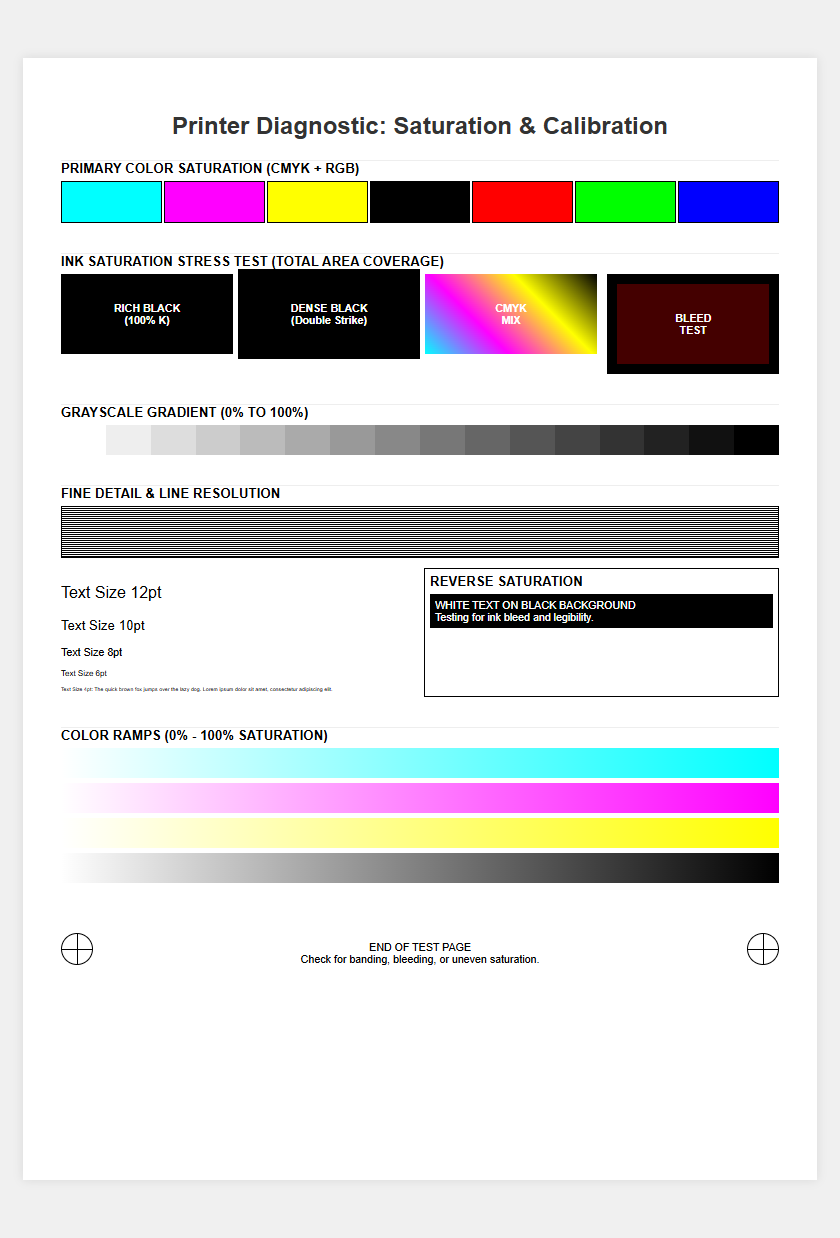
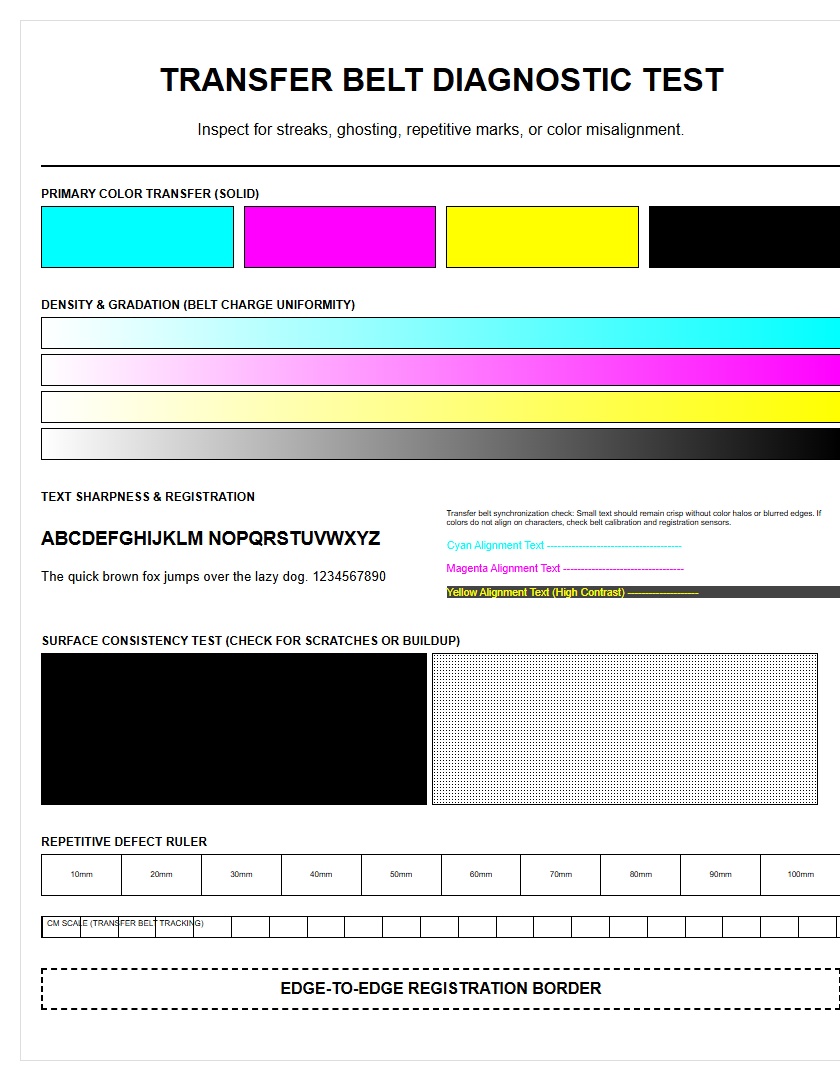
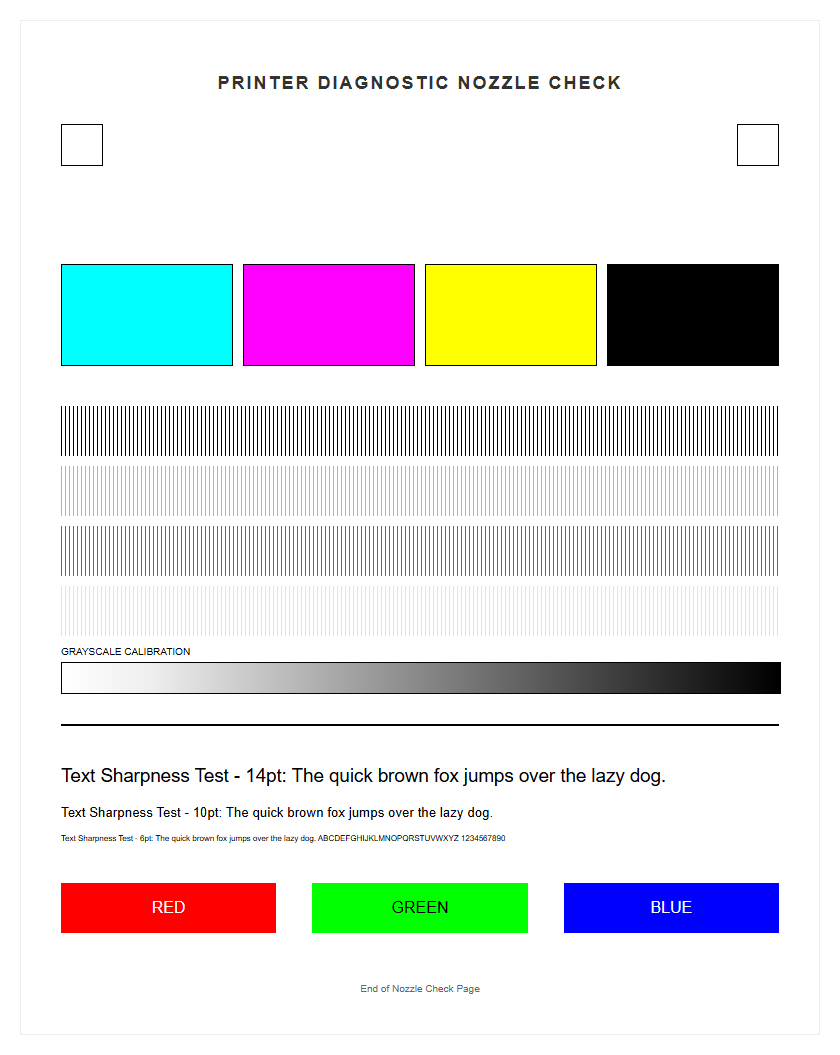
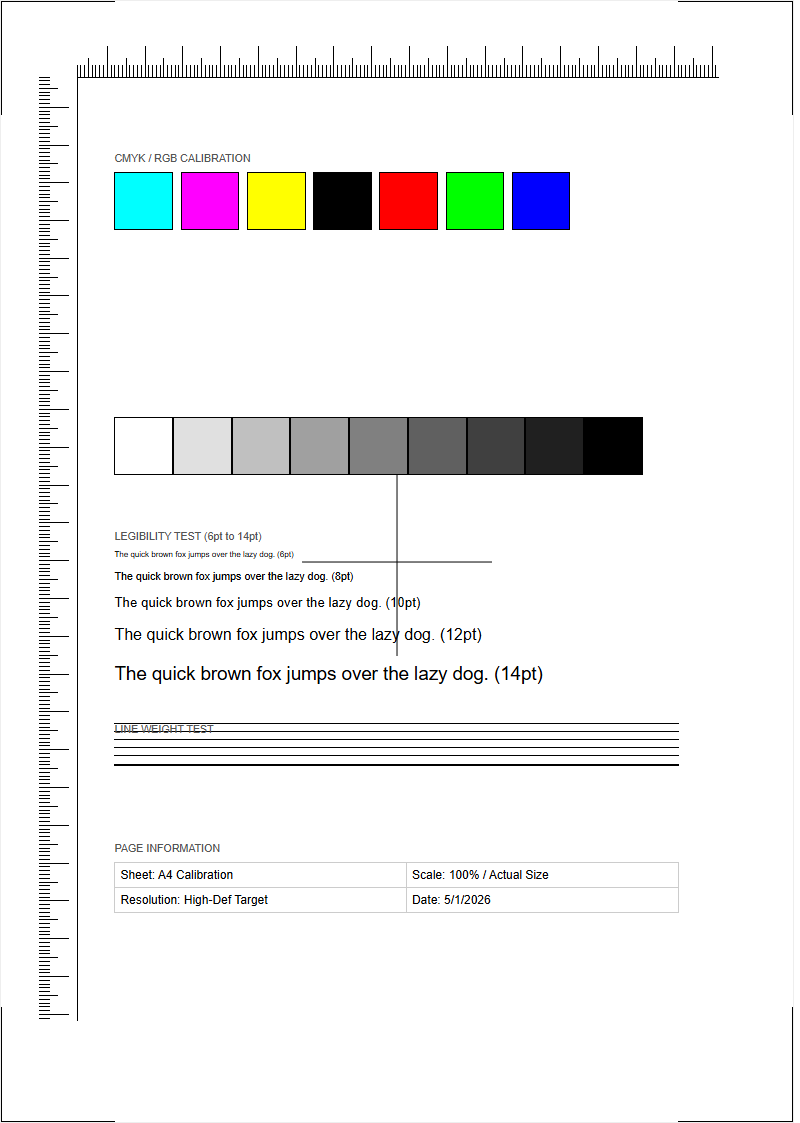
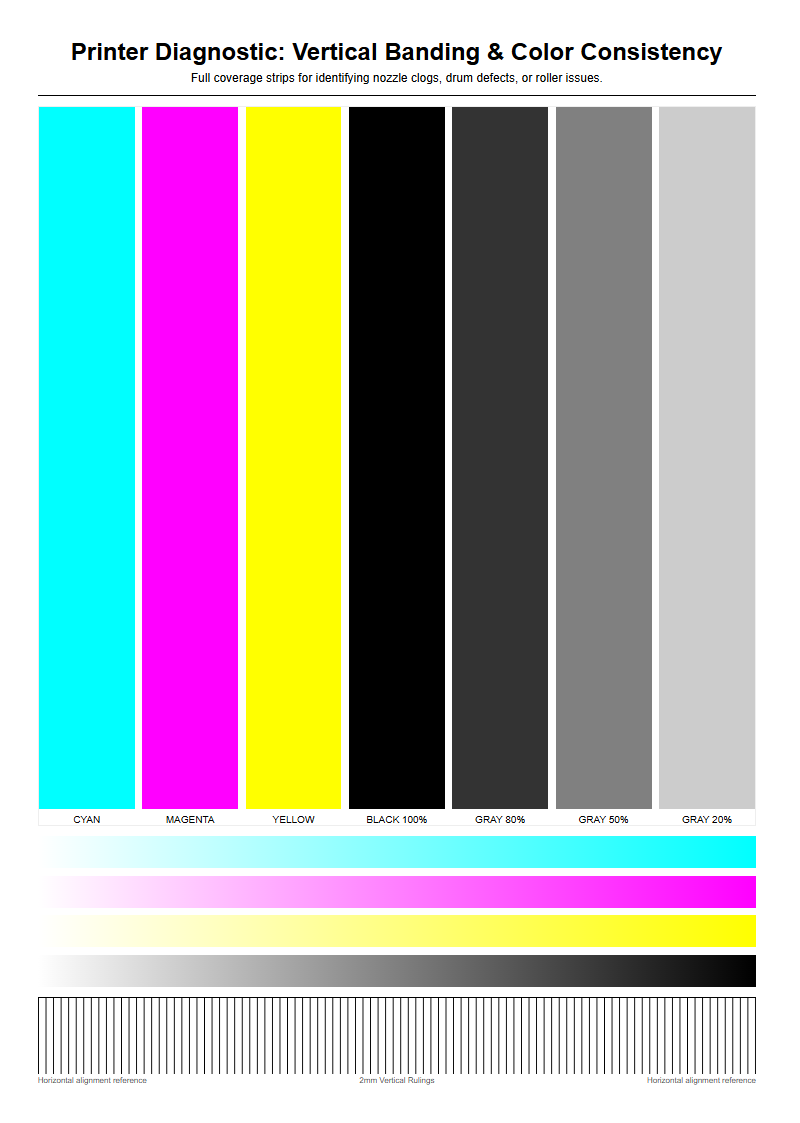
After resolving a jam, running an internal test page is the best way to verify the integrity of the paper path. This "engine test" bypasses the computer and driver, confirming that the hardware can successfully pick, transport, and eject a sheet. While the test page prints, listen for unusual noises such as grinding, clicking, or high-pitched squealing, which could indicate a misaligned gear or a damaged roller. Examine the printed output for signs of "skew"-where the text is slanted-suggesting that one side of the feed mechanism is pulling harder than the other.
- Print a Configuration Page to check internal error logs.
- Run a Quality Diagnostic to check for roller marks or indentation.
- Perform a Duplex Test to verify the secondary reversal path.
If the test page passes without incident, the printer's mechanical timing and sensor synchronization are likely restored. If the page jams again in the same location, it indicates a hardware failure rather than a simple media issue, requiring further mechanical inspection.
Troubleshooting Paper Feed Mechanisms
If paper fails to move despite a clear path and clean rollers, the issue likely lies within the drive mechanism. The paper feed system relies on a series of solenoids and clutches that engage and disengage the drive motors at precise intervals. A "sticky" solenoid-often caused by a worn-out dampening pad-can cause the pickup roller to rotate multiple times, leading to a double-feed jam. Similarly, a failing drive motor may lack the torque necessary to pull heavier media through the fuser assembly. Troubleshooting these components often requires diagnostic software that can actuate individual motors and clutches via the DC controller. Listen for a "thumping" sound, which often indicates a flat spot on a roller or a stripped gear in the drive train. In high-volume environments, these mechanical components eventually reach a duty cycle limit and must be replaced as part of a preventative maintenance kit. Understanding these deeper mechanical failures helps differentiate between a simple user-fixable jam and a critical hardware failure requiring professional technician service.

Comments