
Maintaining peak performance for your HP inkjet or LaserJet printer requires regular utilization of built-in diagnostic tools. An HP printer test page serves as a critical troubleshooting resource, providing a comprehensive diagnostic report to evaluate internal hardware health. By initiating a nozzle check, users can identify clogged printhead nozzles or air bubbles affecting ink flow, evidenced by broken lines in the CMYK color blocks. Furthermore, executing an alignment calibration ensures precise printhead positioning, eliminating vertical or horizontal banding. These utility reports effectively isolate mechanical failures from software conflicts, allowing for targeted maintenance of rollers, fuser assemblies, and cartridge connectivity.
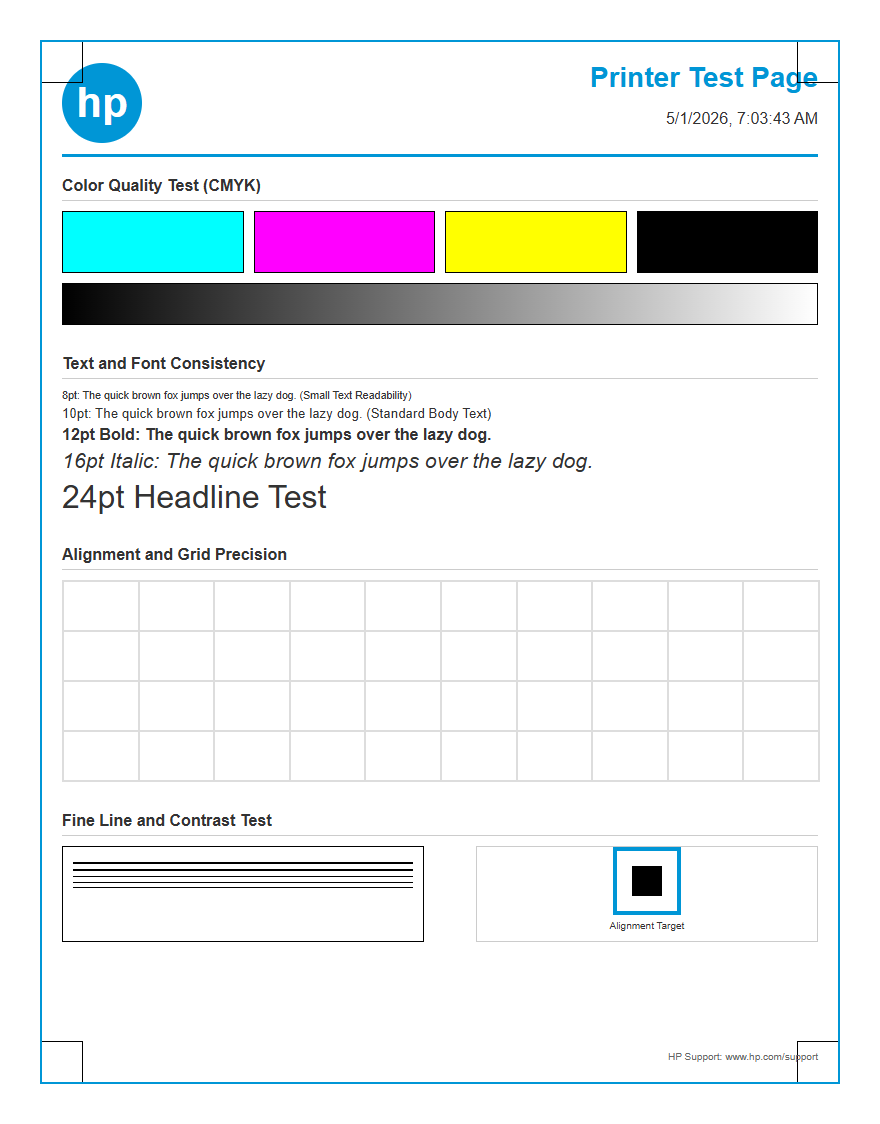
HP Color Test Page Printing
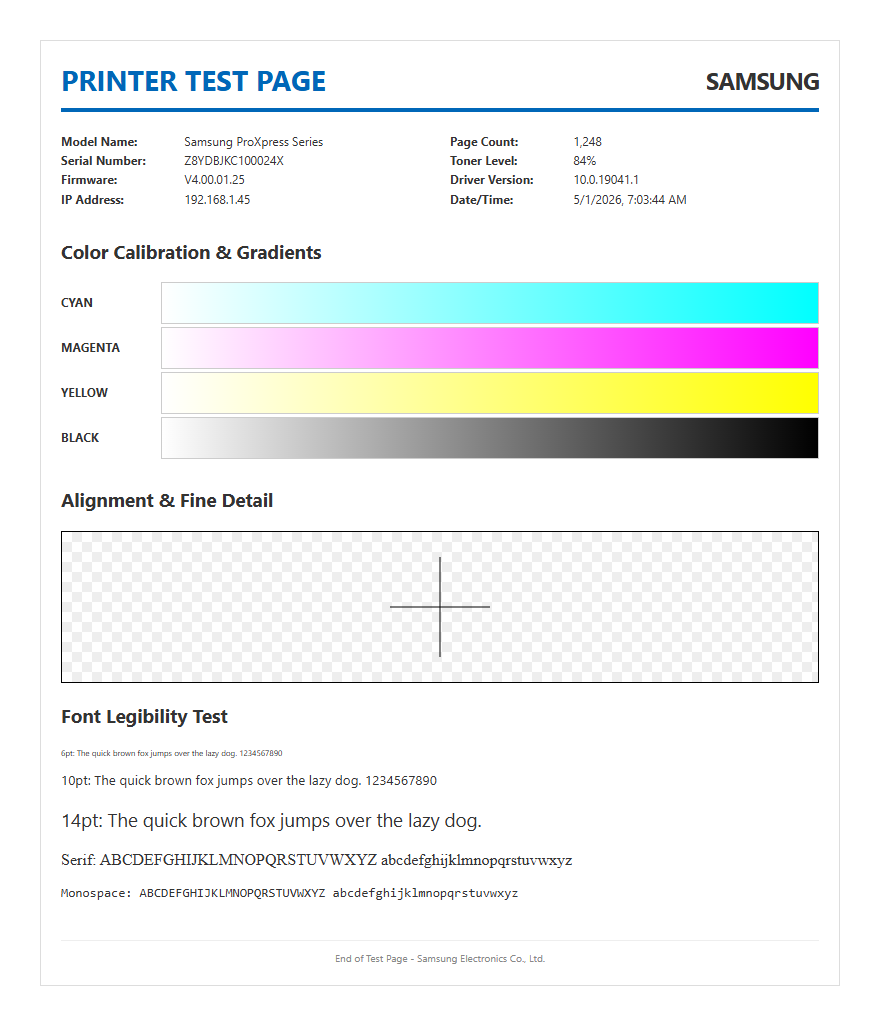
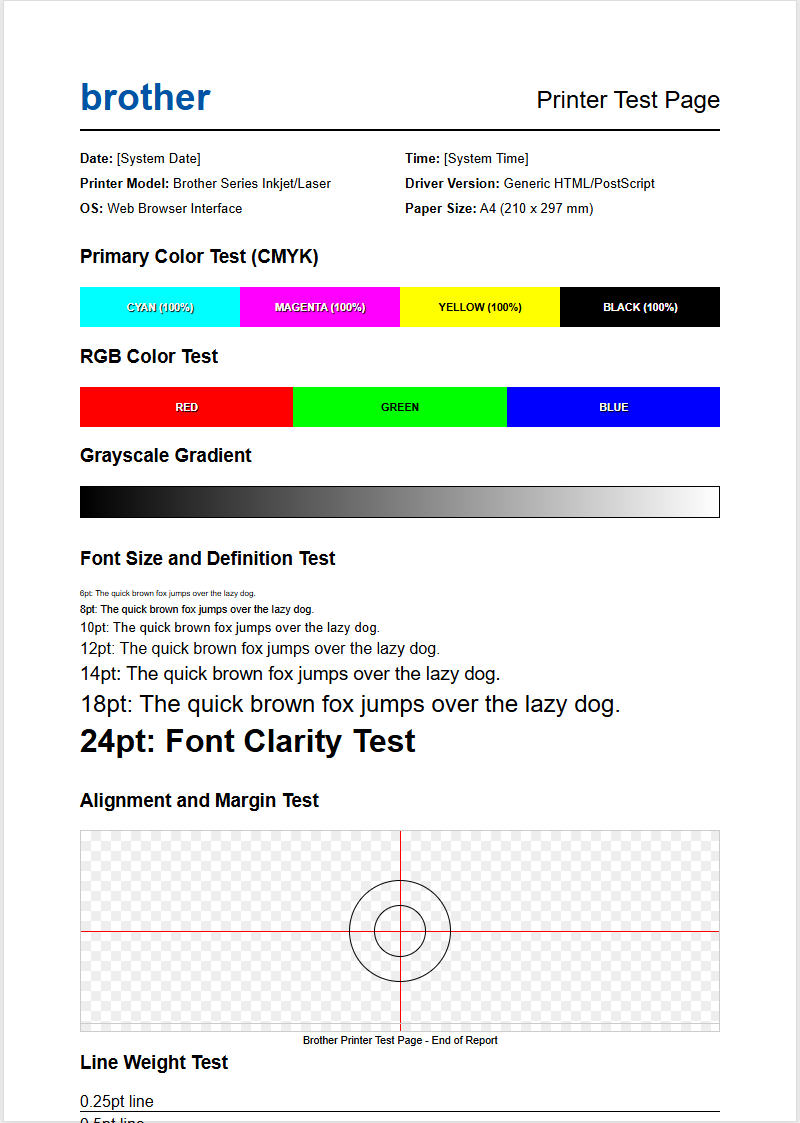
An HP color test page is an essential diagnostic tool used to verify the performance of your printer's CMYK ink or toner cartridges. This page typically consists of color blocks, gradients, and high-resolution images designed to highlight inconsistencies in color reproduction. By printing a test sheet, you can identify if specific colors like Cyan, Magenta, Yellow, or Key (Black) are fading or streaking. This process is often triggered through the HP Smart app or directly from the printer's control panel maintenance menu.
When analyzing the output, look for smooth transitions in the color gradients. If you notice horizontal banding or missing color segments, it may indicate a clogged nozzle or a low supply level. Regular color testing ensures that the print spooler is communicating correctly with the hardware and that the color profiles are correctly applied. For professional results, ensure you use the following parameters:
- Check for uniform ink distribution across all primary color bars.
- Verify the sharpness of fine lines and small font text.
- Ensure no color bleeding occurs between adjacent color blocks.
- Confirm that the "Key" black is deep and not appearing as a dark gray.
HP Black and White Calibration Check
Precision in monochromatic printing is vital for professional documents and high-contrast graphics. An HP black and white calibration check focuses on grayscale accuracy and toner density. Unlike color prints, B&W calibration isolates the black cartridge to ensure there is no "ghosting" or "shading" caused by residual toner on the fuser unit or the transfer roller. This test is particularly important for LaserJet users who require crisp, legible text at high DPI (Dots Per Inch) settings.
During the calibration process, the printer adjusts its internal voltage and laser intensity to match the desired halftone patterns. If the blacks appear washed out or if there is excessive gray background "fogging," it may be time to clean the corona wire or replace the OPC drum. Utilizing a calibration page helps the printer's firmware synchronize mechanical movements with the electronic data, ensuring that every character is rendered with mathematical precision. This keeps your HP LaserJet running at peak efficiency while minimizing wasted consumables during high-volume print jobs.
Improving HP Print Quality
Maintaining high-quality output requires a combination of software optimization and hardware maintenance. If your HP printer begins producing faint text or jagged lines, the first step is to check the driver settings. Often, the printer may be stuck in "EconoMode" or "Draft" settings, which significantly reduces ink or toner saturation to save costs. Adjusting the print quality to "Normal" or "Best" within the HP print dialog can immediately resolve many clarity issues.
To systematically improve your output, follow these technical steps:
- Update the printer firmware to the latest version to fix known rendering bugs.
- Verify that the "Media Type" setting matches the actual paper loaded (e.g., Glossy, Cardstock, or Plain).
- Perform a "Clean Printhead" cycle through the HP Utility software to remove dried ink.
- Check the fuser assembly temperature settings if you are using a LaserJet, as improper heat leads to toner flaking.
Using Resolution Enhancement technology (REt) can also smoothen the edges of fonts and graphics, providing a polished look even on standard office paper.
HP Printer Head Alignment
HP printer head alignment is a critical procedure, especially after installing new ink cartridges or moving the printer. Proper alignment ensures that the printhead nozzles eject ink drops at the exact coordinate on the substrate. If the alignment is off, you will notice "stair-stepping" on vertical lines or overlapping text that makes the document look blurry. The alignment process prints a specialized pattern of lines and boxes that the printer then scans to calibrate its internal sensors.
Modern HP OfficeJet and Envy printers often use an automatic alignment feature where the built-in scanner reads the alignment sheet and makes real-time micro-adjustments to the bidirectional printing timing. If your model requires manual input, you must identify the pattern with the fewest gaps or overlaps and enter those values into the control panel. This synchronization between the carriage motor and the paper feed roller is what allows for photo-quality precision. Neglecting this step can lead to mechanical wear and inconsistent print results across different page layouts.
HP LaserJet Diagnostic Page
The HP LaserJet diagnostic page is a technical report that provides a deep dive into the health of laser-based printing components. Unlike a standard test page, this report includes "event logs" and "usage profiles" that help troubleshoot mechanical failures. It is particularly useful for identifying the source of repeating defects. For instance, if a spot appears at regular intervals down the page, the diagnostic sheet can help you calculate the distance between marks to pinpoint whether the issue lies with the fuser, the pickup rollers, or the drum.
| Component | Potential Issue | Symptom |
|---|---|---|
| OPC Drum | Scratches or wear | Repeating black dots or lines |
| Fuser Unit | Insufficient heat | Toner smudging or not sticking |
| Transfer Roller | Static buildup | Light or uneven print density |
| Laser Scanner | Dust on lens | Vertical white streaks |
Reviewing this data allows IT administrators to perform preventative maintenance before a total hardware failure occurs, ensuring the longevity of the enterprise-grade hardware.
HP Inkjet Nozzle Pattern Test
The HP Inkjet nozzle pattern test is the primary method for diagnosing physical blockages in the thermal inkjet printhead. Each nozzle is responsible for firing thousands of microscopic droplets per second; if even a few nozzles are clogged with dried ink, the overall image quality degrades. The test prints a series of "stair-step" grids for each color. A perfect test shows continuous, unbroken lines, while a failing test shows gaps or missing segments in the grid.
Because HP uses thermal inkjet technology, the nozzles use heat to create vapor bubbles that eject the ink. If the printer sits idle for too long, the ink at the tip of the nozzle can solidify. Running the nozzle pattern test identifies exactly which color channel is affected. If gaps are present, you should initiate a "Level 1 Cleaning" cycle. If the problem persists, a more aggressive "Level 2" or "Power Cleaning" may be necessary to purge the air bubbles and dried residue from the ink delivery system, restoring the vacuum seal required for consistent flow.
Verifying HP Wireless Printing
In a modern office environment, verifying HP wireless printing is essential for maintaining a seamless workflow. Connectivity issues often stem from IP address conflicts or signal interference. By printing a "Network Configuration Page," you can view the printer's current network status, including its SSID, MAC address, and signal strength (measured in RSSI). This page confirms whether the printer is successfully authenticated via WPA2 or WPA3 encryption on your local area network (LAN).
If the printer appears offline, the wireless test report will indicate if the radio is turned on and if the communication with the router is stable. Technical details like the Subnet Mask and Default Gateway are crucial for manual IP assignment, which prevents the printer from "disappearing" when the DHCP lease expires. Furthermore, ensuring that the HP Web Services are connected allows for remote printing features like ePrint. Verifying these wireless parameters ensures that the print spooler on your PC or mobile device can consistently locate the printer hardware over the 2.4GHz or 5GHz bands without latency or packet loss.
HP Color Accuracy Test
The HP color accuracy test is designed for creative professionals who need their printed output to match their digital monitors. This involves testing the printer's color gamut-the entire range of colors it is capable of producing. Discrepancies often occur during the RGB (Red, Green, Blue) to CMYK conversion process. By printing a dedicated accuracy sheet, users can compare physical swatches against standardized Pantone or hex color charts to see how well the printer's ICC profiles are performing.
To achieve high accuracy, the printer must correctly interpret the embedded metadata in a document. If the blues appear too purple or the reds appear orange, the calibration may need to be adjusted within the advanced driver settings. Factors such as "rendering intent" (perceptual vs. relative colorimetric) play a huge role in how colors are mapped. Using high-quality HP Photo Paper also improves accuracy, as the substrate's whiteness and absorption rate affect the final visual perception. Regular accuracy checks ensure that brand logos and marketing materials maintain visual consistency across all printed media.
HP Printer Maintenance Evaluation
A comprehensive HP printer maintenance evaluation involves auditing the physical and digital health of the device. This evaluation goes beyond simple print quality and looks at the "life cycle" of various internal components. HP printers track the total page count (engine cycles), which is essential for determining when a maintenance kit is required. Components like pickup rollers, separation pads, and fuser assemblies have rated lifespans, and exceeding these limits often leads to frequent paper jams and multi-sheet feeding.
- Review the "Supplies Status" page for remaining ink or toner percentages.
- Check the "Event Log" for recurring error codes like 13.00.00 (paper jam).
- Inspect the physical paper path for debris or dust accumulation.
- Verify firmware version to ensure compatibility with modern operating systems.
Performing this evaluation quarterly helps in budgeting for consumables and identifying hardware that may be nearing its "End of Life" (EOL). It ensures that the device remains a reliable asset rather than a source of office downtime.
HP Ink Saturation Test
The HP ink saturation test determines how much liquid the paper substrate can hold before the quality begins to diminish. High saturation is necessary for vibrant photos, but excessive ink can lead to "bleed-through," where moisture warps the paper or seeps through to the other side. This test is particularly important when using non-HP third-party papers or heavy cardstocks. The test page prints blocks of color at varying percentages of intensity-from 10% to 100%-to find the "sweet spot" for that specific media.
Technical factors like "dry time" are evaluated here; if the ink saturation is too high, the rollers may smear the wet ink as the page exits the printer. Pigment-based inks, common in HP OfficeJet Pro models, handle saturation differently than dye-based inks, offering better water resistance but requiring precise absorption control. By analyzing the saturation test, you can adjust the "Ink Volume" or "Dry Time" settings in the advanced print preferences. This ensures that even high-density graphics remain sharp without cockling the paper or causing messy smudges on professional presentations.

Comments