
Optimizing your print queue performance is critical for minimizing system latency and ensuring seamless document processing across your network. This technical guide provides a deep dive into Windows Print Spooler service management, focusing on identifying buffer bottlenecks and resolving asynchronous communication errors. By utilizing advanced spooler diagnostics, you can effectively troubleshoot driver isolation issues and port configuration conflicts that hinder throughput. Additionally, we cover the importance of test page verification to confirm rendering accuracy and hardware-software synchronization. Implementing these structured diagnostic protocols allows for proactive maintenance, ensuring high-availability printing and robust data integrity within any professional enterprise environment.
Understanding Print Queue Basics
The print queue acts as a digital holding area where documents wait their turn to be processed by the hardware. Operating on a First-In, First-Out (FIFO) logic, this buffer ensures that the printer receives data in the correct sequential order. When you send a command, the operating system converts the document into a language the printer understands, such as PCL or PostScript, and stores it as a temporary spool file. This architectural middleman allows users to continue working in their applications while the printing process continues in the background.
- Buffer Management: Prevents the CPU from being bottlenecked by the slower physical printing process.
- Job Metadata: Includes vital details like owner name, page count, document status, and data size.
- Status Monitoring: Reflects whether a job is currently "Spooling," "Printing," "Paused," or "Error."
A healthy queue is essential for consistent performance. If the queue becomes overloaded with high-resolution graphics or complex vector data, the spooler may struggle to allocate enough virtual memory, leading to system latency. Understanding this foundation is the first step in diagnosing why a test page might fail to emerge despite the computer reporting a successful transmission.
Resolving Stuck Print Jobs
Stuck print jobs are frequently caused by communication timeouts or mismatched driver configurations. When a job enters the "Error" or "Deleting" status without disappearing, it effectively blocks all subsequent tasks in the queue. This stall often occurs because the spooler is waiting for a confirmation handshake from the printer that never arrives due to a lost packet or a full hardware buffer. To resolve this, users must often intervene manually to clear the software pipeline.
- Open the Devices and Printers menu and select the active hardware.
- Right-click the printer icon and select "See what's printing" to open the queue window.
- Highlight the stalled document and select "Cancel" from the Document menu.
- If the status remains "Deleting" for more than a minute, a service-level reset is required.
Often, the issue lies in the interpretation of Enhanced Metafile (EMF) data. If the printer's internal memory is full, it cannot accept new data packets, causing the queue to hang. Ensuring that the hardware is online and clear of paper jams is a prerequisite before attempting to force-clear the software-side backlog.
Restarting Printer Spooler Services
When manual cancellation fails, restarting the Printer Spooler service is the most effective technical solution. The spooler, or spoolsv.exe, is a background process that manages the distribution of print jobs from the OS to the driver. If this service crashes or encounters a memory leak, the queue will stop responding. Resetting this service flushes the active memory associated with print tasks without requiring a full system reboot, saving time during diagnostics.
- Access the Services console by typing
services.mscin the Windows Run dialog. - Locate "Print Spooler" in the alphabetical list of local services.
- Right-click the service and select "Stop" to halt all background printing activities.
- Navigate to the system spool folder to clear temporary files, then return to the console and select "Start."
This procedure reinitializes the spooler's interaction with the printer drivers and the I/O ports. It is a critical troubleshooting step when the queue appears empty but the printer refuses to acknowledge new requests, or when the "Print Spooler" service unexpectedly stops due to an unhandled exception in a third-party driver.
Clearing Local Processing Backlogs
Clearing local processing backlogs involves manually purging the physical files that represent queued documents. Even after stopping the spooler service, corrupted data fragments may remain in the system's spool directory, typically located at C:\Windows\System32\spool\PRINTERS. These files, ending in .SHD (shadow files) and .SPL (spool files), contain the actual print data and job settings. If these files are corrupted, the spooler will repeatedly fail when attempting to read them upon restart.
- .SHD Files: Contain metadata about the job, such as priority and user permissions.
- .SPL Files: Contain the actual raw data or EMF instructions for the printer hardware.
- Directory Purge: Deleting all files in this specific folder resets the queue to a zero-state.
This deep-cleansing method ensures that no legacy data interferes with new print requests. It is particularly useful when dealing with "ghost jobs" that reappear after every restart. By emptying this cache, you force the system to rebuild its job list from scratch, eliminating persistent processing errors that standard UI cancellations cannot reach.
Troubleshooting Hardware Connection Errors
Hardware connection errors often manifest as "Offline" or "Printer Busy" statuses within the queue. These issues are generally rooted in the physical or network layer of the communication model. Whether using a USB interface or a networked TCP/IP port, the handshake between the PC and the printer must be constant. If the bidirectional communication is interrupted, the queue cannot receive the "Ready" signal, causing data packets to drop or time out.
| Connection Type | Common Failure Point | Resolution |
|---|---|---|
| USB Cable | I/O Port Timeout | Reseat cable or change to a direct port. |
| Network (Wi-Fi/LAN) | IP Address Conflict | Verify Static IP or DHCP reservation. |
| WSD Port | Web Services Discovery drop | Switch to a Standard TCP/IP Port. |
Verifying the port configuration in the printer properties is essential. Frequently, a system update might switch a stable TCP/IP port to a WSD port, which can lead to inconsistent queue response and connectivity dropouts during large print tasks. Checking these settings ensures the spooler has a reliable path to deliver data.
Improving Printing Response Times
Improving printing response times requires optimizing how the spooler handles data flow. By default, many systems are set to "Start printing after last page is spooled," which ensures the printer doesn't run out of data mid-job but introduces a significant delay. Changing this setting to "Start printing immediately" allows the hardware to begin outputting the first page while the subsequent pages are still being processed by the computer's CPU.
- Spooling vs. Direct: Avoid "Print directly to printer" as it ties up the application until the hardware finishes.
- Data Format: Using RAW format instead of EMF can sometimes speed up rendering for high-end laser printers.
- Driver Type: V4 drivers often offer better performance and reduced overhead compared to legacy V3 drivers.
Reducing the complexity of the print job also helps. For testing purposes, ensuring the queue is not burdened by high-resolution bitmaps allows for a faster verification of the printer's mechanical readiness. Proper spooler management minimizes the latency between clicking "Print" and the hardware activating its rollers.
Canceling Corrupted Tasks
Canceling corrupted tasks is a vital skill for maintaining queue integrity. Corruption occurs when the data stream is interrupted, perhaps due to a power flicker or a software conflict, leaving the spooler with an incomplete or unreadable set of instructions. A corrupted task often shows a massive file size or strange characters in the document name. These tasks are "unrenderable" and act as a permanent roadblock for all other documents waiting in line.
- Identify the corrupted job by looking for unusual "Size" values in the queue display.
- Attempt a soft cancel via the print queue interface by right-clicking the document.
- If the job hangs, use the Command Prompt with administrative privileges to force a reset.
- Execute
net stop spooler, delete the PRINTERS folder contents, andnet start spooler.
By purging these problematic files, you prevent the printer from attempting to interpret "garbage" data, which can sometimes lead to the printer outputting dozens of pages with a single line of gibberish. Regular maintenance of the queue prevents these corrupted files from accumulating over time.
Initiating Test Page Requests
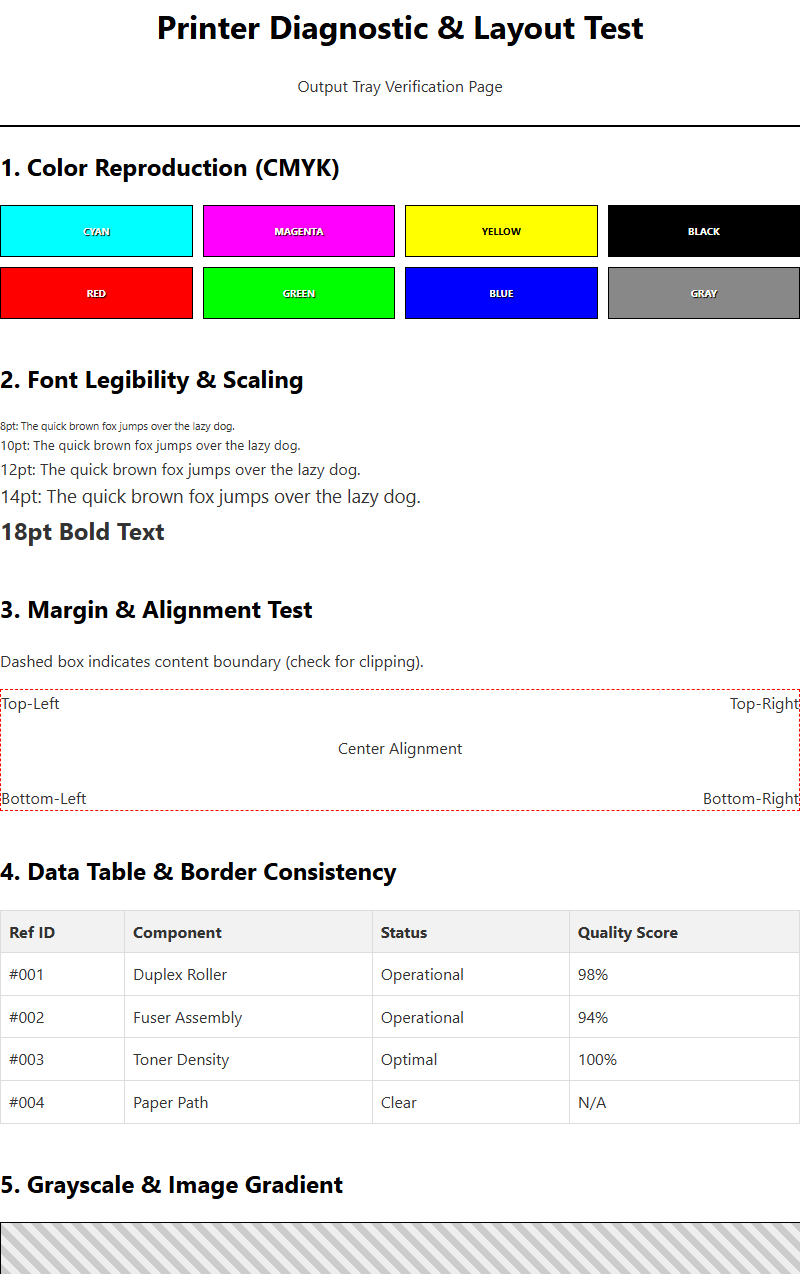
Initiating a test page request is the standard diagnostic method to verify that the entire print path-from the application layer through the spooler to the hardware-is functioning correctly. A test page bypasses complex application settings and uses the driver's built-in parameters to send a standardized document to the queue. This helps isolate whether a printing issue is specific to a certain program or a general system-wide failure.
- Driver Verification: The test page lists the driver name, version, and the environment (e.g., Windows x64).
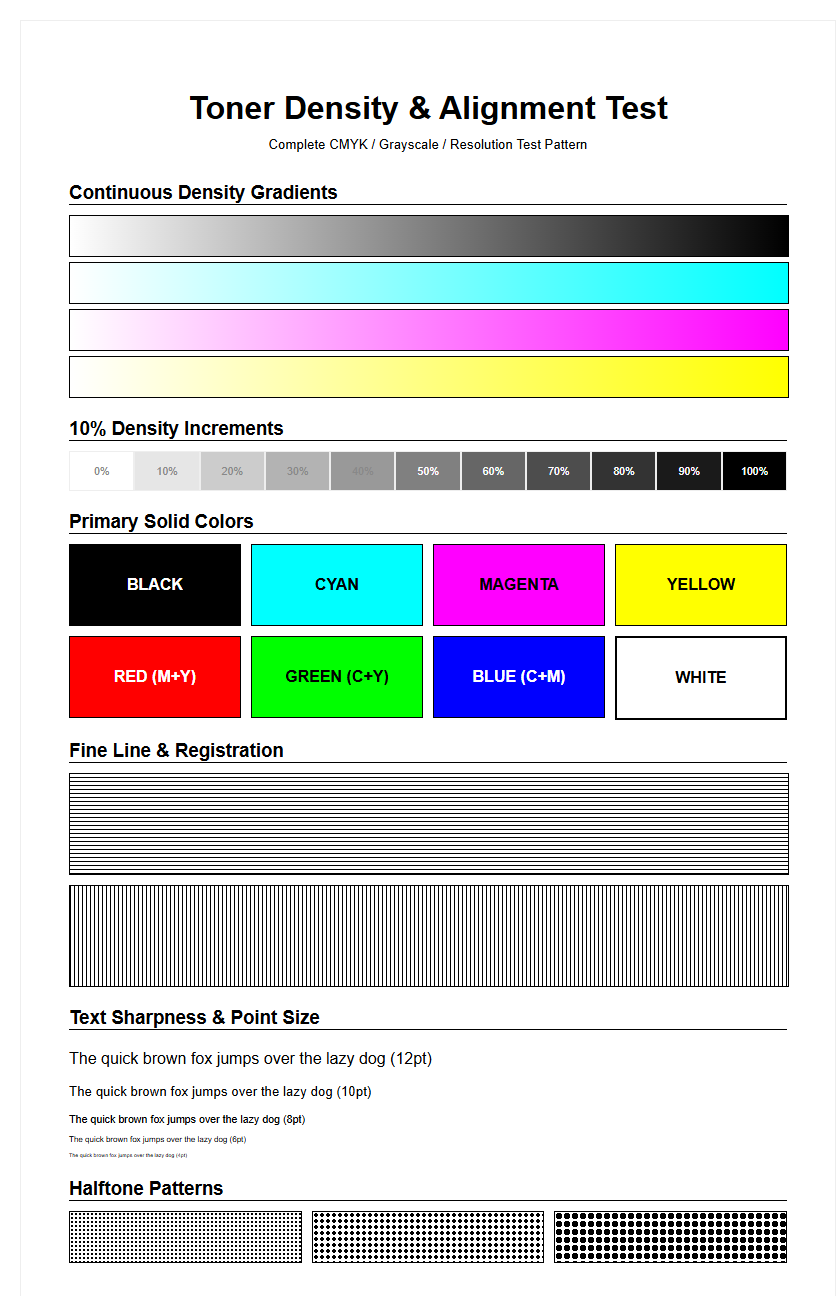
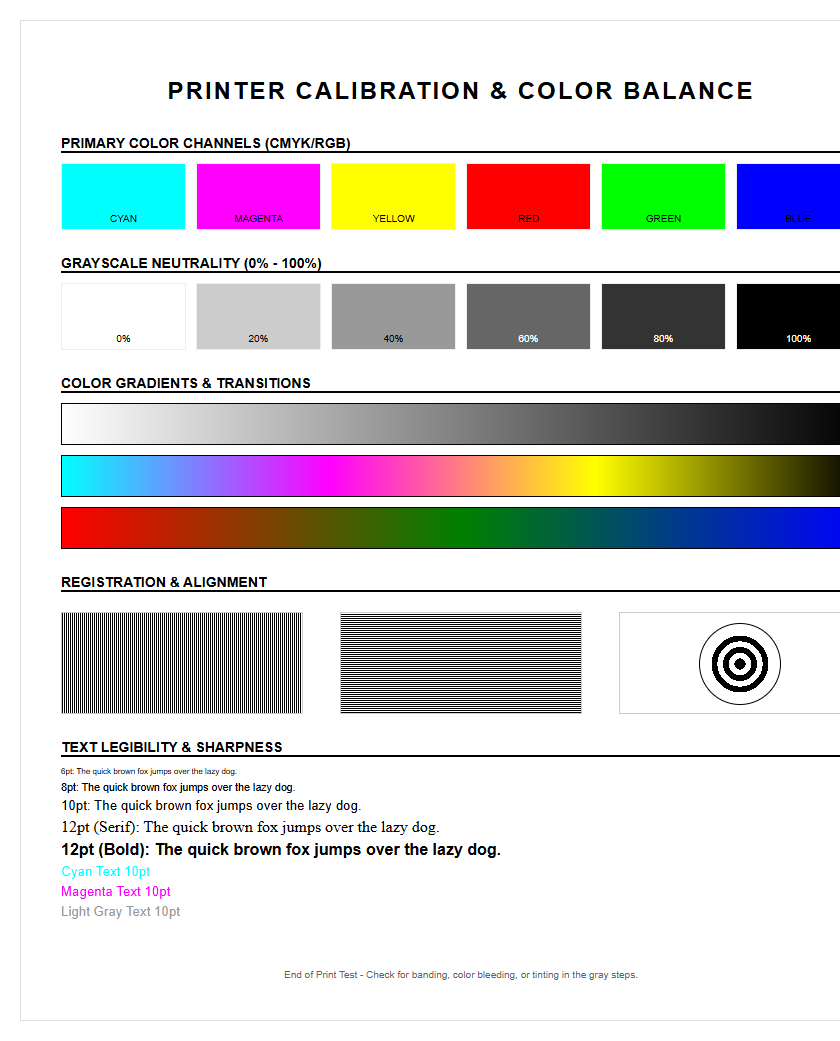
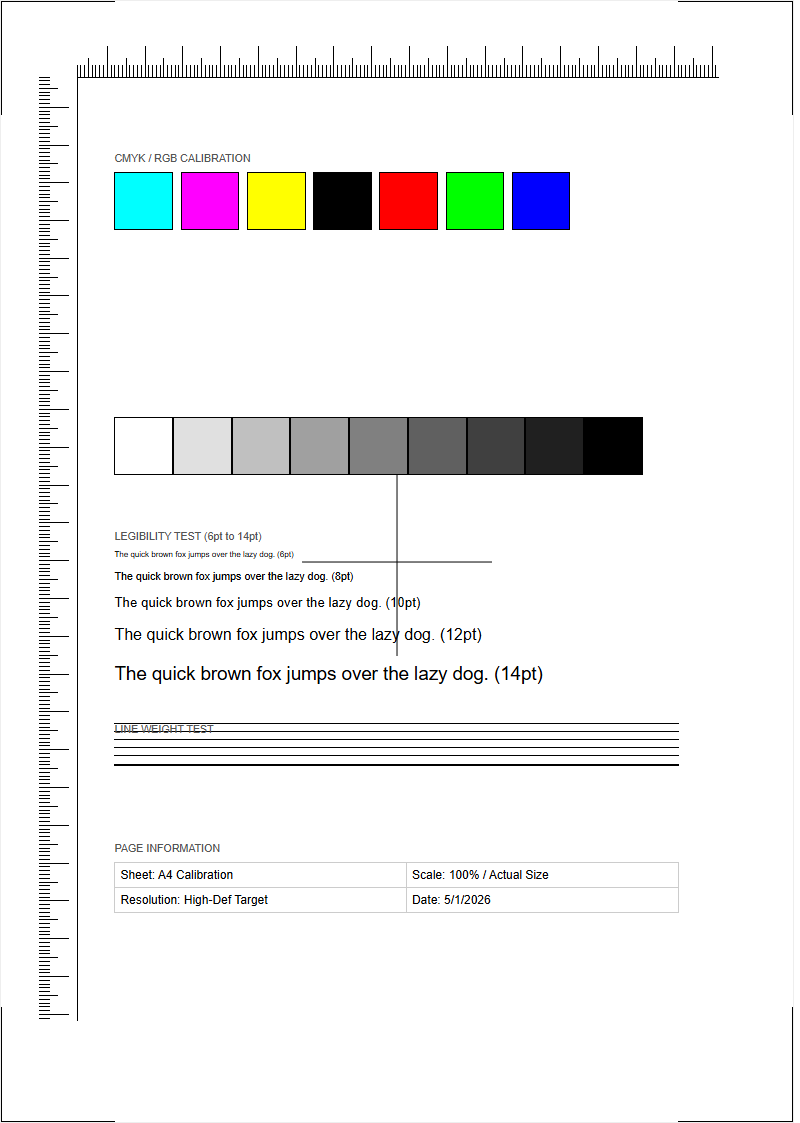
- Color Alignment: It usually includes a color wheel or CMYK bars to check for nozzle clogs or toner issues.
- Margin Accuracy: Provides a visual reference for printable area boundaries and paper alignment.
To send a test page, navigate to Printer Properties and click "Print Test Page." If the request appears in the queue but doesn't print, the problem lies between the spooler and the hardware. If it never appears in the queue, the driver itself may be corrupted or improperly installed within the OS.
Managing Document Sequential Order
Managing the sequential order of documents allows users to prioritize urgent tasks over large, non-critical background jobs. Within the print queue, every document is assigned a priority level from 1 to 99, with 99 being the highest. By default, all jobs are set to 1. Adjusting these values allows the spooler to reorder its internal FIFO stack, pushing high-priority test pages or urgent memos to the front of the line.
| Feature | Function | Benefit |
|---|---|---|
| Priority Ranking | Reorders the job list dynamically. | Urgent jobs print first. |
| Scheduling | Sets specific print availability times. | Saves bandwidth during peak hours. |
| Pause/Resume | Temporarily halts a specific job. | Allows for paper or toner refills mid-queue. |
Effective management also involves "Separation Pages," which help identify where one job ends and another begins. By manipulating these settings, administrators can ensure that the printer hardware is used efficiently, reducing the time users spend waiting at the machine for their specific documents among a pile of others.
Optimizing System Spooler Performance
Optimizing system spooler performance ensures that the printing subsystem does not become a drain on host resources. The spooler relies on disk I/O and virtual memory; therefore, placing the spool folder on a fast SSD rather than a fragmented HDD can significantly decrease the time it takes to "render" a job. Furthermore, the print processor settings-such as WinPrint with the RAW data type-should be matched to the printer's capabilities for maximum throughput.
- Disk Allocation: Ensure the drive containing the spool directory has at least 2GB of free space for temporary files.
- Registry Tweaks: Adjusting the
SpoolerPriorityin the system registry can give the process more CPU cycles. - Isolation Mode: Setting drivers to run in "Isolated" mode prevents a single driver crash from taking down the service.
These optimizations are particularly important in high-volume environments. By fine-tuning the background rendering process and ensuring the system has sufficient paging file space, you can maintain a responsive print queue that handles complex test pages and large graphical assets with minimal latency and high reliability.

Comments