
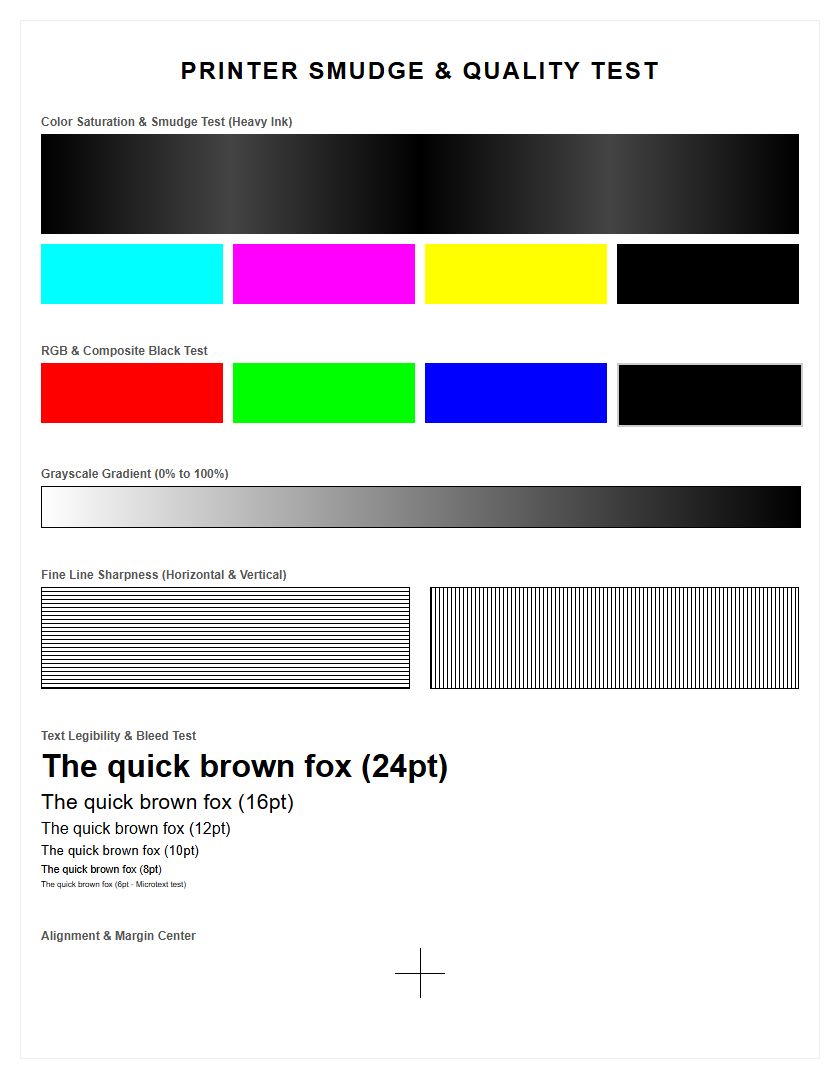
Evaluating your printer's health begins with analyzing the feed mechanism's integrity through internal diagnostic test pages. When the pick roller's high-friction rubber surface undergoes elastomer degradation or glazing, it fails to exert necessary traction on the media stack, leading to misfeeds or skewing. By generating a configuration report, you can assess margin consistency and leading-edge registration to detect subtle timing variances within the paper path. Reviewing these diagnostic outputs helps pinpoint worn rollers, weakened solenoid engagement, or clutch slippage. Monitoring these indicators ensures proactive maintenance of the paper-handling assembly, preserving the device's duty-cycle and operational reliability.
Understanding Printer Pick Roller Function
The pick roller is a critical mechanical component responsible for initiating the printing cycle by pulling a single sheet from the input tray. Usually constructed from a high-friction rubber or silicone compound, this cylindrical part rotates against the paper stack, utilizing surface tension and grip to overcome the weight of the media. As the solenoid engages the drive gears, the roller turns, drawing the leading edge of the paper into the internal transport assembly. Without a functional pick roller, the entire imaging process remains stagnant, as the printer cannot transition media from the tray to the registration rollers.
The roller's surface is often textured with micro-grooves to enhance its gripping capability, allowing it to handle various paper weights and textures, from standard 20lb bond to heavy cardstock. Understanding this component is essential for troubleshooting "out of paper" errors when the tray is clearly full, as it indicates a failure in the initial mechanical handshake between the hardware and the media. The precision of the roller's diameter and the consistency of its rotation speed are vital for maintaining the timing required by the printer's logic board.
Common Signs of Worn Feed Rollers
Recognizing the degradation of feed rollers is vital for maintaining uptime. Over time, the abrasive nature of paper fibers wears down the rubber surface, leading to a condition known as "glazing." This occurs when the roller becomes smooth and shiny, losing the friction necessary to grab sheets. Common symptoms include:
- Frequent "Load Paper" prompts despite a full tray.
- Audible squeaking or grinding noises during the initial intake cycle.
- Intermittent "mispicking," where the roller spins multiple times before successfully grabbing a sheet.
- Visible cracks or "flat spots" on the rubber tire.
When these signs appear, the roller's Shore hardness has likely increased, making the rubber too brittle to conform to the paper's surface. Users might also notice skewed prints, where one side of the roller grips better than the other, pulling the page in at an angle. Monitoring these indicators prevents sudden hardware failure during high-volume print jobs and ensures that the printer test page displays perfect alignment without registration errors caused by slipping media.
Resolving Frequent Printer Paper Jams
Frequent paper jams at the input area often point directly to a failing pick roller or an obstructed paper path. When the roller fails to provide consistent torque, the paper may stall before reaching the registration sensors, triggering a firmware error. To resolve these issues, first, clear any jammed media by pulling in the direction of the paper path to avoid damaging the internal gears or fuser film. Inspect the feed path for the following:
- Paper debris or "chads" stuck in the feed area sensors.
- Incorrectly adjusted paper guides in the input tray causing resistance.
- High humidity causing sheets to stick together via static cling.
If jams persist specifically at the start of the print job, the roller's friction coefficient has likely dropped below the operational threshold. This causes the paper to slip, resulting in a timing mismatch within the printer's logic board. Regularly inspecting the feed path for obstructions and ensuring the paper is properly fanned before loading can significantly reduce the frequency of these mechanical interruptions and prevent damage to the delicate separation claws.
Effective Pick Roller Cleaning Techniques
Cleaning is often a cost-effective alternative to immediate replacement. To restore grip, one must remove accumulated paper dust and toner residue from the roller's surface. Use a lint-free cloth lightly dampened with high-purity isopropyl alcohol (70% or higher) or specialized roller cleaner. Follow these steps:
- Power down the printer and unplug it from the power source for safety.
- Access the internal assembly by removing the paper tray or opening the rear access door.
- Locate the pick roller and gently wipe the rubber tire while rotating it manually.
- Ensure the entire circumference is cleaned until the cloth comes away without dark residue.
- Allow the rubber to dry completely before reassembling to prevent moisture from affecting the paper.
Avoid using harsh chemicals like acetone or petroleum-based solvents, as these can dissolve the rubber compound or cause it to swell and degrade prematurely. Regular cleaning cycles every 5,000 pages can extend the lifespan of the feed assembly and ensure consistent media handling during intensive printer testing phases.
Symptoms of Dirty Paper Feed Components
A dirty pick roller does not always result in a total failure; often, it manifests as subtle performance issues that degrade output quality. Accumulation of paper dross (fine dust) creates a barrier between the rubber and the media, leading to slipping. Furthermore, if the roller picks up stray toner or ink from previous jobs, it can transfer these contaminants onto the leading edge of new sheets, resulting in unsightly smudges on the printer test page. Other symptoms include:
- Double-feeding, where multiple sheets are pulled simultaneously because of sticky residue.
- "Ghost jams," where sensors detect a delay in paper movement even if no physical jam occurs.
- Reduced throughput speed as the engine retries the pick cycle multiple times.
In high-volume environments, paper dust acts like a lubricant, neutralizing the "tack" of the roller. This is particularly prevalent when using recycled paper or cheaper media with high loose-fiber content. Maintaining a clean environment and using air blowers to clear the tray area can mitigate these symptoms before they necessitate a full hardware service or part replacement.
Step by Step Pick Roller Replacement
When cleaning no longer restores functionality, replacement is necessary. Most modern printers utilize a modular design allowing for user-replaceable pick rollers. Follow this technical procedure:
- Consult the service manual to identify the specific part number and internal location.
- Remove the input tray and, if necessary, turn the printer on its side to access the bottom assembly.
- Locate the retaining clips or the locking collar on either side of the roller shaft.
- Gently spread the clips or press the release tab to slide the old roller off the drive spindle.
- Align the new roller, ensuring the "D-shape" or keyed orientation matches the shaft.
- Snap the new component into place, verifying that the locking tabs are fully seated.
Always handle the new roller by its plastic edges; touching the rubber surface with bare hands can transfer skin oils, which reduces friction and shortens the component's operational life. After installation, perform a printer test page to calibrate the new grip and ensure the paper path is clear of any installation debris.
Improving Printer Paper Pickup Reliability
Reliability in paper feeding is a combination of hardware health and media management. To maximize the efficiency of the pick roller, ensure that the paper is stored in a cool, dry place to prevent moisture absorption, which increases sheet weight and stickiness. Consider the following optimization table:
| Factor | Recommendation |
|---|---|
| Paper Storage | Keep in original wrappers until use to maintain moisture levels. |
| Loading Technique | Fan the edges to break static bonds before placing in the tray. |
| Tray Alignment | Adjust side and rear guides tightly against the stack without bowing. |
| Paper Weight | Verify the media is within the GSM range specified for the device. |
Furthermore, avoid mixing different types or weights of paper in the same tray. The pick roller's torque and the lift plate's pressure are often calibrated for a consistent resistance; varying the media can cause the sensors to miscalculate the pick timing, leading to avoidable error codes and inefficient throughput during large print runs.
Difference Between Pick Rollers and Separation Pads
While both components are essential for paper handling, they serve distinct roles in the feed cycle. The pick roller is an active, motorized component that reaches down and grabs the top sheet of the stack. In contrast, the separation pad (or retard roller) is a stationary or counter-rotating part located directly beneath the pick roller. Its primary function is to provide resistance against the sheets below the top page, ensuring that only one sheet enters the printer at a time.
- Motion: The pick roller rotates with the drive train; the pad remains fixed or applies reverse friction.
- Material: Pick rollers are often softer rubber for grip; pads are usually made of cork or high-durability polymers.
- Failure Mode: A worn pick roller causes "no-picks," whereas a worn separation pad causes "multi-picks."
Understanding this distinction is crucial when diagnosing feed issues. If the printer pulls multiple pages at once, the separation pad is likely the culprit, even if the pick roller is in perfect condition. Both should be inspected during routine maintenance to ensure balanced paper control.
Maintenance Tips for Smooth Paper Loading
Proactive maintenance prevents the "dry-rot" and glazing that plague infrequently used printers. Even if the device is not used daily, the rubber components can harden over time. It is recommended to perform a "dry run" or print a basic test page weekly to keep the internal gears lubricated and the rollers supple. Additionally, follow these tips:
- Regularly vacuum the paper tray to remove dust and debris that the roller might pick up.
- Inspect the spring-tensioned lift plate in the tray; if the plate doesn't push the paper against the roller with enough force, the roller cannot engage.
- Replace the entire "maintenance kit" (rollers and pads) simultaneously to ensure balanced wear.
Using high-quality paper with low dust output can extend the interval between cleanings. By treating the pick roller as a consumable part with a finite lifespan-typically 50,000 to 100,000 pages-users can plan for replacements before critical failures occur, ensuring a seamless workflow and consistent output quality across all printed documents.
Restoring Optimal Printer Feeding Performance
Once physical cleaning or replacement is complete, restoring the printer to peak performance may involve software-level adjustments. Some enterprise-grade printers track the "pick count" and require a manual reset of the maintenance counter to clear warning messages and reset internal timing logic. Access the printer's web interface or control panel to reset these values after installing new hardware. Steps for final verification include:
- Load the tray with standard 80gsm paper to test basic functionality.
- Print a multi-page internal test report to verify consistent pick timing across several sheets.
- Observe the "leading edge" alignment on the printout to ensure the roller is pulling straight.
- Check the event log for any remaining "13.xx" or "Paper Jam" error codes.
Restoring the feed system ensures that the mechanical timing remains synchronized with the laser or inkjet firing sequence. This synchronization is vital for preventing image truncation or "cut-off" text. A well-maintained feed path not only saves time but also reduces the physical wear on the motor and drive gears by minimizing the force required to move media through the engine.

Comments