
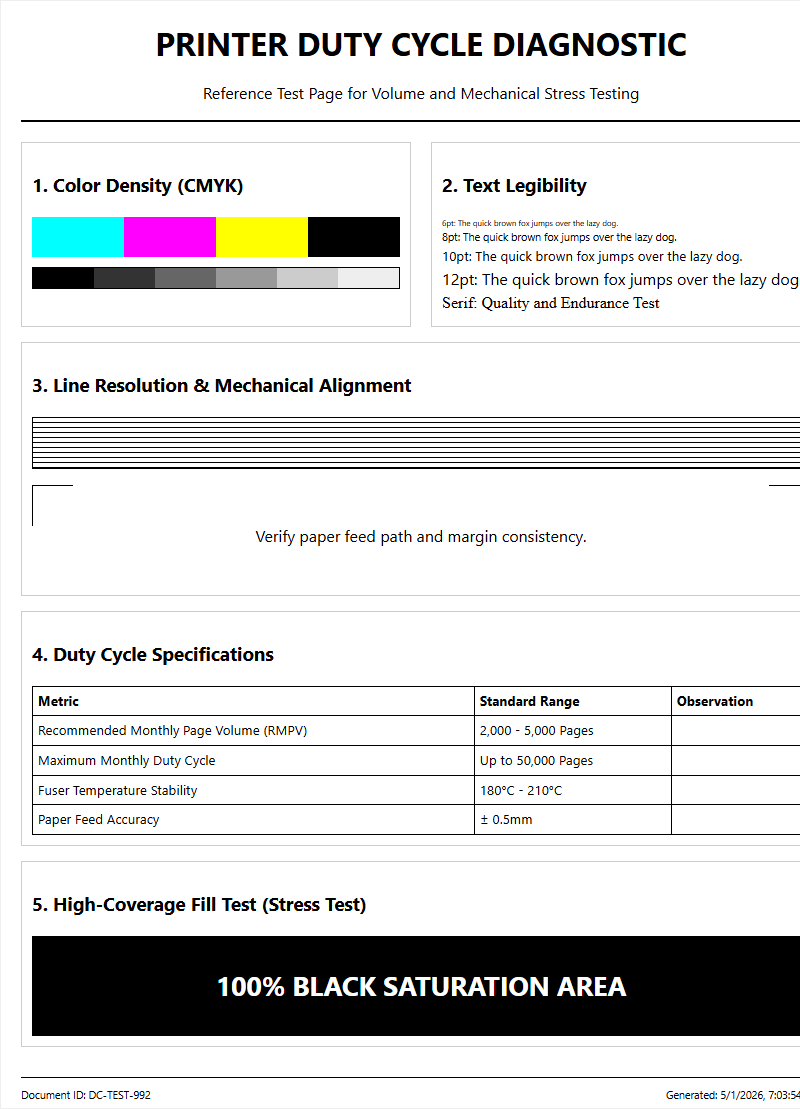
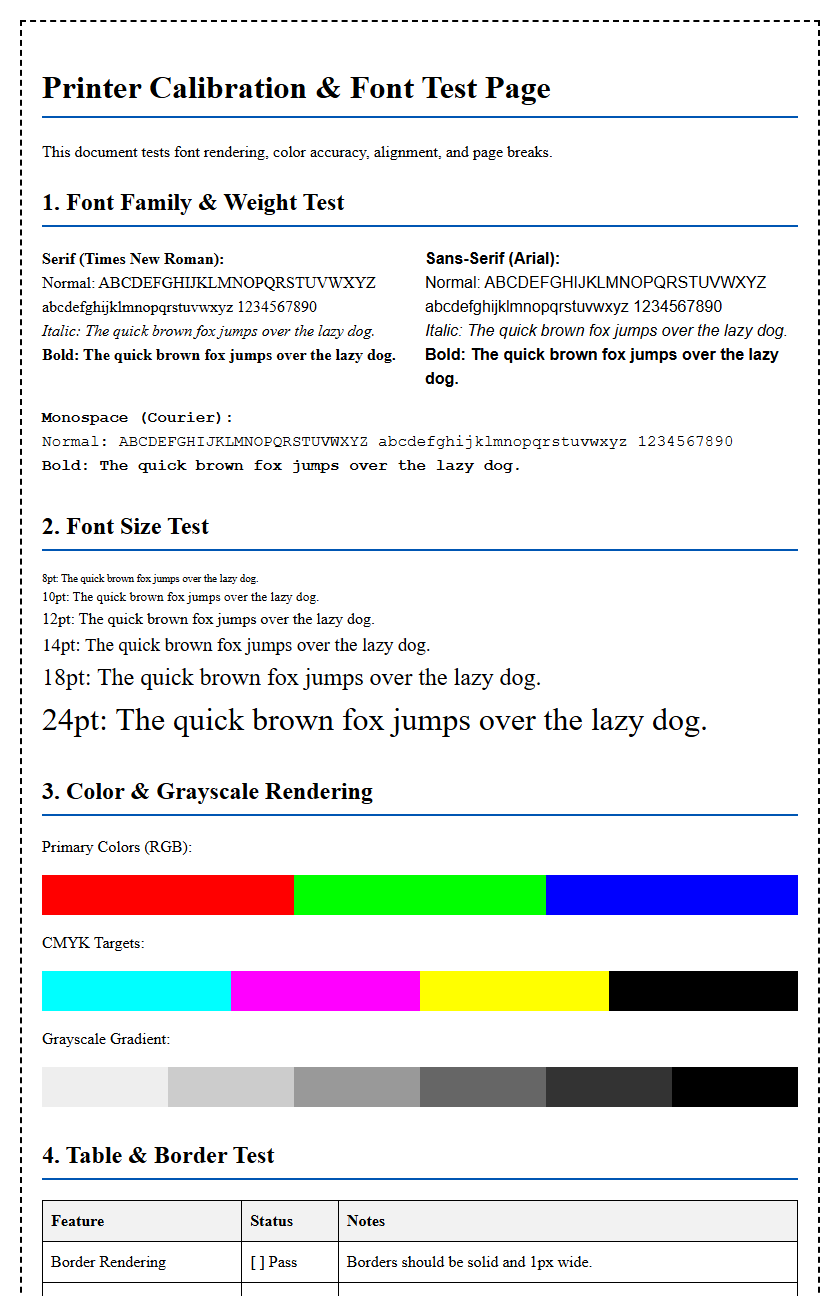
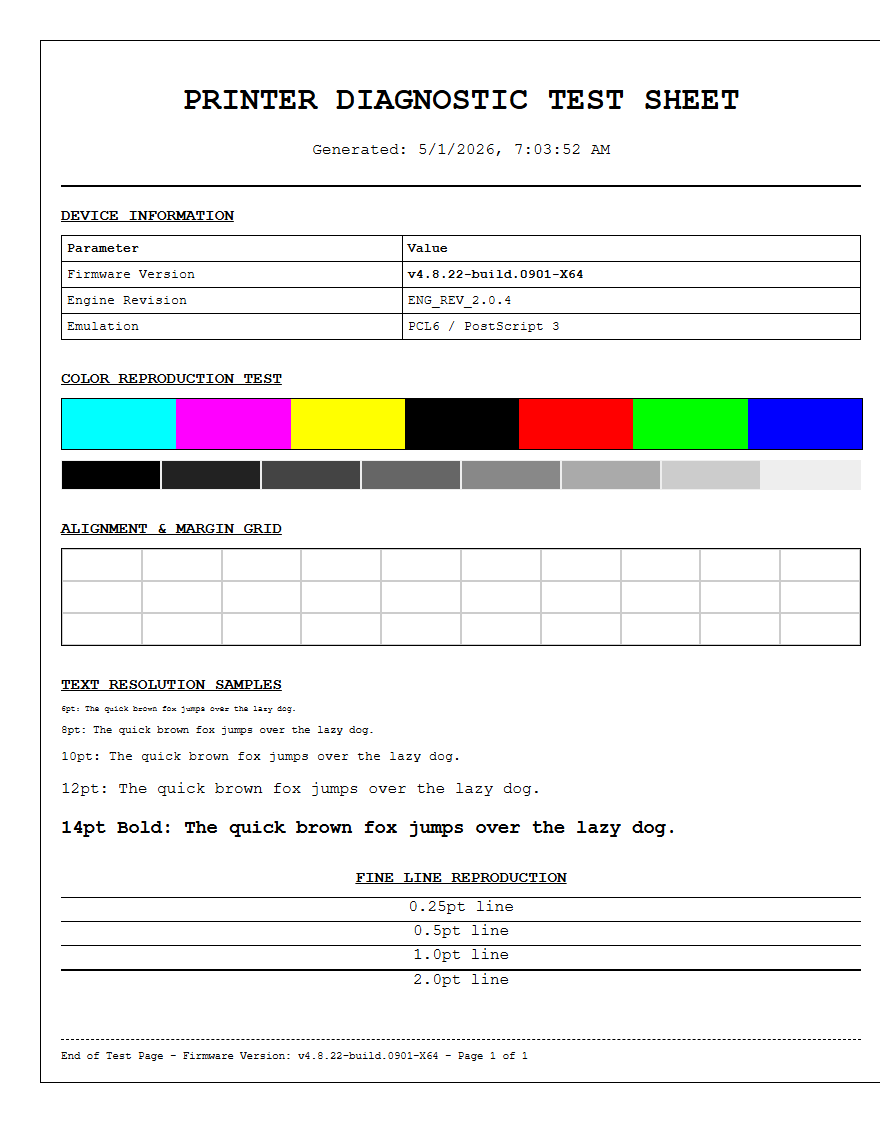
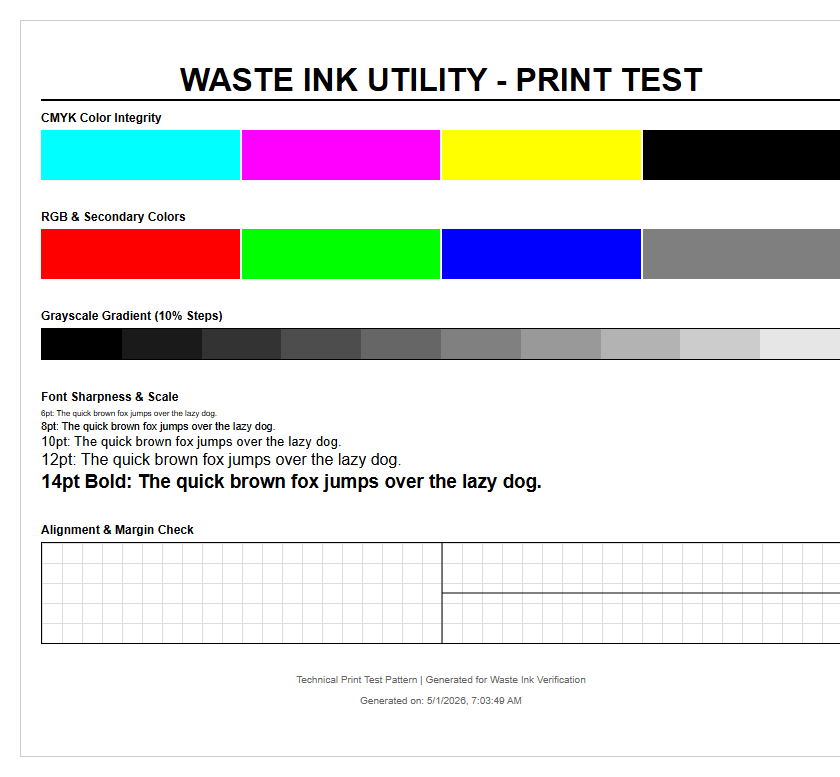
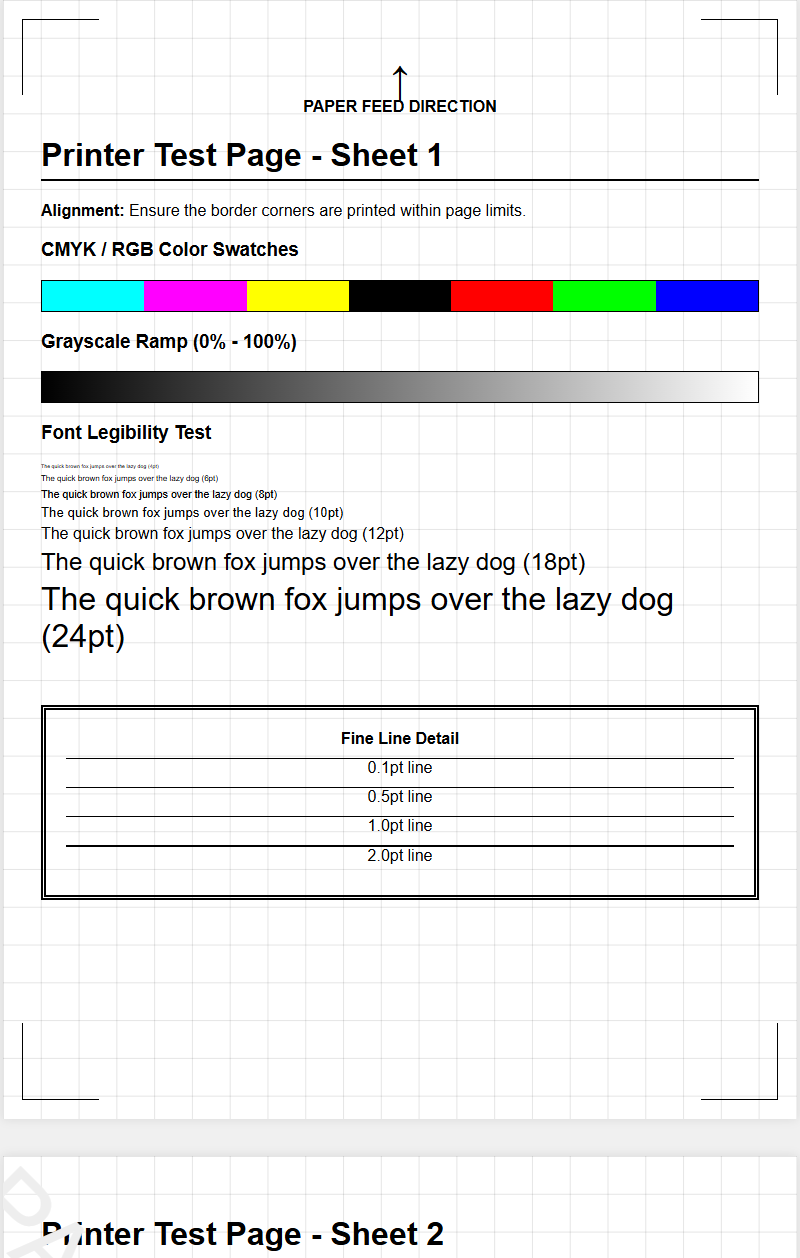
A Duplex Printing Test Page is an essential diagnostic tool designed to evaluate the precision of your printer's internal duplexer unit. This process focuses on image registration, ensuring that the content on both sides of the media aligns perfectly without skewing or offset errors. By running this test, you can calibrate the paper path to account for mechanical tolerances, effectively eliminating margin drift. It specifically validates the two-sided binding calibration for both long-edge and short-edge flips, maintaining vertical and horizontal symmetry. Utilizing these technical patterns allows for fine-tuning the printer's hardware, ensuring professional-grade, consistent front-to-back alignment for all automated double-sided documents.
Understanding Duplex Printing Basics
Duplex printing is the automated process where a printer handles both sides of a page without user intervention. A specialized internal component known as the duplexer manages the paper path, rerouting the sheet through a reversal mechanism after the first side is fused. This technology significantly enhances productivity and reduces physical storage requirements for documents. Unlike simplex printing, which only addresses one side of the substrate, duplexing involves complex timing between the pickup rollers and the internal gate. The engine must ensure the sheet is precisely flipped to maintain alignment with the secondary print head pass or the re-routed single-pass system.
Understanding this fundamental mechanism is essential for anyone looking to optimize high-volume print jobs or create professional-grade brochures. By mastering duplexing basics, users can leverage advanced features like booklet finishing and nested pagination. This process relies heavily on the printer's firmware to calculate the necessary delay for ink drying or toner fusing before the reverse side is processed. Such delays are critical to prevent smearing or roller contamination during the second pass through the fuser assembly.
Automatic Versus Manual Double Sided Modes
Automatic duplexing requires no manual assistance; the printer's internal rollers handle the inversion of the substrate. Conversely, manual duplexing relies on the user to physically remove the printed sheets and re-insert them into the input tray. This distinction is crucial for workflow efficiency and hardware longevity.
- Automatic Mode: An integrated duplexer unit flips the paper internally using a series of diverters and reversing rollers.
- Manual Mode: The software driver pauses and prompts the user to flip the stack based on specific visual cues.
- Semi-Automatic: Some specialized drivers offer guided manual re-insertion steps to minimize orientation errors.
While automatic modes are standard in enterprise-grade laser printers, entry-level inkjet models often rely on manual duplexing to reduce manufacturing costs. Manual modes require careful attention to the leading edge and orientation of the paper to avoid "upside-down" or "back-to-front" errors. Automated systems use specialized sensors to detect the sheet's position, ensuring that the secondary side aligns perfectly with the primary side, minimizing registration errors.
Printer Hardware Compatibility Requirements
Not every device supports duplexing natively. The hardware must include a mechanical duplexer unit capable of reversing the sheet's path. Furthermore, the internal memory (RAM) must be sufficient to store image data for both sides of multiple pages simultaneously to prevent buffer underrun errors during the flip cycle. Compatibility also extends to the printer's fuser unit and rollers, which must handle the stresses of multiple passes without causing jams.
| Requirement | Description |
|---|---|
| Duplexer Module | The physical gate and rollers for internal sheet inversion. |
| Memory (RAM) | Buffers the secondary page data while the first side prints. |
| Firmware Support | The onboard logic that manages the complex timing of the paper path. |
High-speed duplexing requires robust feed mechanisms that can sustain the increased friction of two-sided processing. Users should check the manufacturer's technical specifications to verify if the "D" suffix (e.g., LaserJet 4000D) is present, indicating built-in duplexing hardware capabilities. If the hardware lacks a duplexing tray, the driver may still allow manual duplexing, but the automated functionality will be absent from the system preferences menu.
Configuring System Print Preferences
Proper configuration begins at the software level. Users must access the Printer Properties or Print Preferences menu within the operating system to enable the duplex feature. This involves toggling the setting from "None" or "Simplex" to "Duplex." Depending on the driver type-whether it is a PCL (Printer Command Language) or PostScript driver-the naming conventions for these settings may vary across different interfaces.
- Navigate to the Control Panel and select "Devices and Printers."
- Right-click the target device and select "Printing Preferences."
- Locate the "Finishing" or "Layout" tab in the dialog box.
- Check the "Print on Both Sides" box or select "Duplex."
- Select the desired binding method (Long Edge or Short Edge).
It is vital to ensure that the printer driver is fully updated to communicate the duplexing capability to the hardware. In some cases, the "Duplex Unit" must be manually enabled in the "Device Settings" tab before it appears as an option in the standard print dialog, ensuring the system recognizes the attached hardware module correctly.
Long Edge Versus Short Edge Binding
Binding orientation determines how the second side of the page is oriented relative to the first. Long Edge Binding is the standard for portrait documents, such as reports or letters, where the page flips like a traditional book. Short Edge Binding is typically reserved for landscape documents or "flip-up" style tablets, where the pages turn over the top edge. Choosing the wrong binding edge results in the second page appearing upside-down relative to the first.
- Long Edge: Best for standard 8.5x11 portrait orientation; flips on the vertical axis.
- Short Edge: Essential for landscape spreadsheets or horizontal presentations; flips on the horizontal axis.
- Inverted Layout: Used for specialized folding requirements in multi-fold brochures.
When printing a test page, it is important to verify that the text on the reverse side is upright when flipped along the intended axis. Modern drivers often provide a visual preview to help users distinguish between these two modes. Technical precision in this selection ensures professional presentation and document readability across various binding methods, preventing common pagination mistakes during the final assembly of printed materials.
Reducing Paper Waste and Environmental Impact
Transitioning to duplex printing is a primary strategy for reducing environmental impact in the office. By utilizing both sides of the sheet, paper consumption is theoretically cut by 50%, leading to a direct reduction in the carbon footprint associated with paper manufacturing and transportation. This shift also decreases the volume of waste generated, contributing to more sustainable business operations and reducing the frequency of paper tray refills.
Beyond the raw materials, duplexing saves on storage space and shipping weight, indirectly lowering the energy required for logistics. Many corporate sustainability policies mandate duplexing as the default setting on all networked multifunction devices. While it might slightly increase the use of toner or ink due to the density of double-sided content, the net ecological benefit of reduced pulp consumption remains significant. Implementing a default "Duplex Only" policy can save hundreds of trees annually for medium-sized enterprises. Furthermore, using recycled paper with sufficient opacity ensures that environmental goals do not compromise the legibility of the printed output, maintaining a professional standard while going green.
Troubleshooting Common Duplex Alignment Issues
Duplexing increases the complexity of the paper path, which can lead to specific mechanical issues. Alignment errors, also known as registration drift, occur when the print on the back side does not line up with the front. This is often caused by worn pickup rollers or a miscalibrated duplexer gate. If the paper is not pulled into the reversal unit perfectly straight, the second side will appear skewed or shifted.
- Clean the internal rollers to prevent slippage during the flip cycle.
- Check for debris in the duplexing unit that might obstruct the paper path.
- Recalibrate the printer's internal alignment via the maintenance menu.
- Ensure the paper guides in the tray are snug against the substrate to prevent skew.
Paper jams are more frequent during duplexing because the sheet must travel a longer, more circuitous route through the reversal gate. Static electricity can also cause sheets to stick together, leading to double-feeds. Monitoring the humidity levels in the printing environment can mitigate static and ensure the paper remains flat enough for the duplexer to process it without snagging on internal sensors.
Testing Double Sided Output Quality
Evaluating the quality of double-sided output requires looking for specific technical flaws. "Show-through" or "bleed-through" is a common issue where ink or toner from one side is visible on the other. This is quantified by the paper's opacity rating. A high-quality duplex test page should feature heavy graphics and fine text on both sides to stress-test the hardware's registration capabilities and the fuser's ability to handle re-heated toner.
| Metric | Target Outcome |
|---|---|
| Registration | Zero-point alignment between front and back margins. |
| Opacity | Minimal visibility of reverse-side content through the page. |
| Smudging | No ink transfer from Side A to Side B during the flip cycle. |
During the test, inspect the "gutters" to ensure they are consistent across both sides. If the text on the back is significantly higher or lower than the front, the duplexer's timing sensors may require technical adjustment. Checking for "fuser ghosting," where a faint image of the first side is repeated on the second, is also critical for ensuring professional-grade output in high-heat laser environments.
Selecting Optimal Paper Weight for Duplexing
The choice of media is critical when printing on both sides. Standard 20lb (75 GSM) office paper may be too translucent for heavy graphics, leading to significant show-through. For professional duplex results, a higher weight, such as 24lb (90 GSM) or 28lb (105 GSM), is recommended. This increased thickness provides the necessary opacity to keep the content on each side distinct and legible without visual interference.
- 20lb / 75 GSM: Acceptable for text-heavy internal drafts or low-density documents.
- 24lb / 90 GSM: The ideal balance of opacity and cost for most professional reports.
- 32lb / 120 GSM: Recommended for premium brochures and high-impact presentations.
Heavier paper also resists the curling effect caused by the fuser's heat during the first pass. If the paper curls too much after side one, it may fail to enter the duplexing unit correctly, causing a jam. Conversely, avoid excessively thick cardstock that exceeds the duplexer's maximum rated weight, as the reversal rollers are often less robust than the primary feed path and may struggle to bend the rigid media during inversion.
Step by Step Double Sided Setup Guide
Setting up a duplex job involves a logical sequence of software and hardware checks to ensure a successful outcome. First, verify that the physical duplexing unit is installed and the printer is powered on with sufficient paper in the tray. Ensure that the paper is dry and free of wrinkles to prevent jams during the reversal process.
- Open the document and select "Print" (Ctrl+P) from the file menu.
- Click on "Printer Properties" or "Preferences" to open the device-specific interface.
- Locate the "Duplex," "Two-Sided," or "Double-Sided" option and enable it.
- Select your binding orientation: "Flip on Long Edge" or "Flip on Short Edge."
- Set the media type to match the paper loaded (e.g., Bond, Plain, or Recycled).
- Click "OK" and then "Print" to initiate the duplexing job.
Once the job starts, listen for the printer to pull the paper back in after the first side is finished. If you are using manual duplexing, wait for the software prompt on your computer screen before touching the paper stack. Following these steps ensures that the internal logic of the printer syncs perfectly with the page layout, preventing common orientation errors.

Comments