
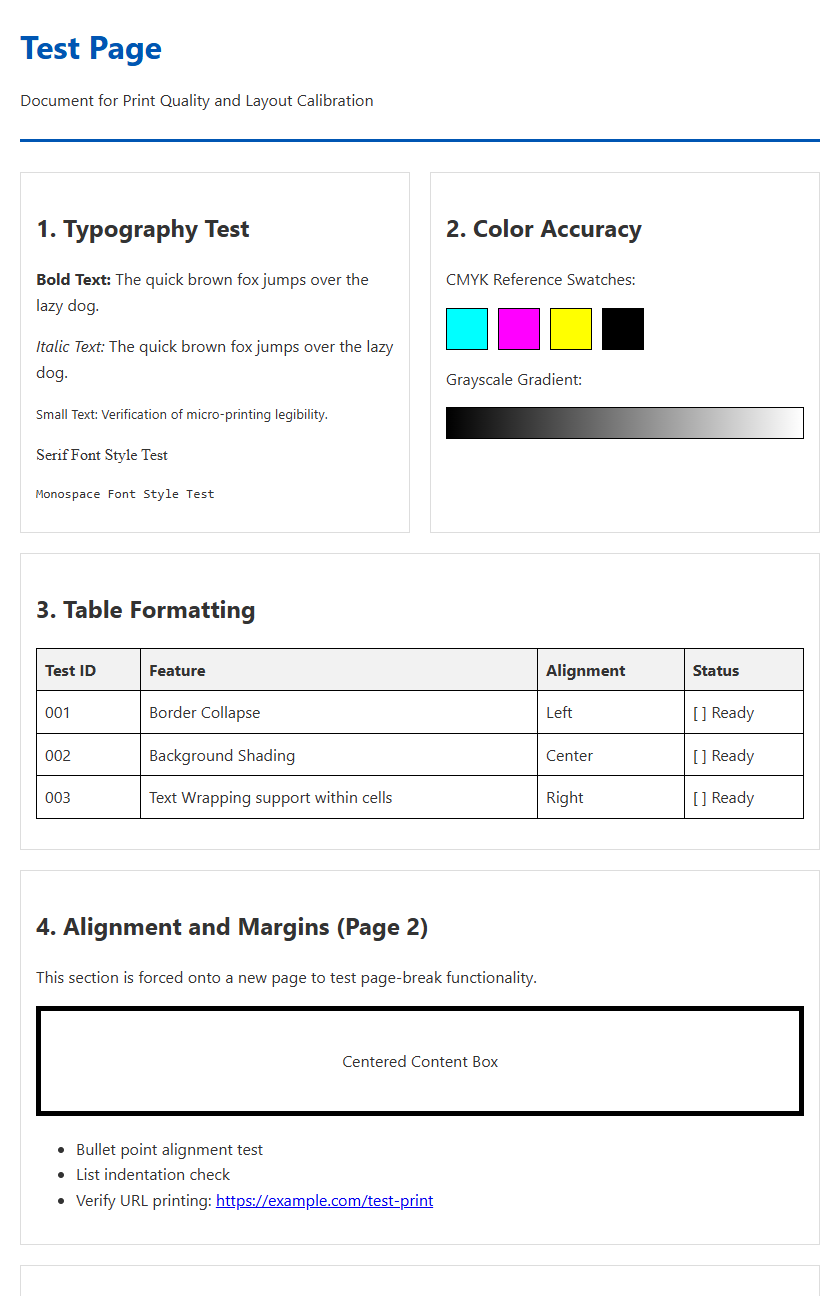
Performing a printer test page analysis is essential for synchronizing your hardware with specific print media to achieve professional-grade results. This calibration process focuses on evaluating the media type and substrate GSM to ensure optimal tension and feed accuracy during the print cycle. By analyzing surface coating compatibility, you can determine how the chemistry of the paper affects ink absorption and pigment adhesion, preventing common artifacts like mottling or bleeding. Integrating these technical metrics into your workflow allows for precise ICC profile adjustments, maximizing color gamut fidelity and ensuring that every droplet deposition aligns perfectly with the material's physical properties.
Selecting the Correct Paper Type
Choosing the appropriate media is the foundational step in generating an accurate printer testing page. The printer's internal firmware calibrates ink delivery based on the expected substrate, meaning that using standard 80 GSM bond paper when the settings are configured for premium photo media will lead to oversaturation. Users must distinguish between various grammages and coatings to ensure the hardware applies the correct mechanical pressure during the feed cycle.
- Standard Bond: Best for text-heavy documents and internal drafts.
- Inkjet Broadsheet: Designed with a light coating to minimize feathering.
- Vellum or Parchment: Requires specific fuser heat settings in laser printers to prevent melting or jamming.
To optimize output, always verify the manufacturer's recommended media list. High-opacity paper prevents "show-through" when printing duplex test patterns, which is critical for evaluating mechanical alignment and registration accuracy. Understanding the difference between porous and non-porous surfaces ensures the printer's nozzles or fuser units operate within their designated thermal and kinetic parameters.
Impact of Media on Print Quality
The relationship between the print head and the media surface determines the final sharpness of the test image. When ink droplets hit the paper, a phenomenon known as dot gain occurs, where the droplet expands upon contact. Media with high capillary action causes significant bleeding, which blurs the edges of fine text and degrades the resolution of high-DPI (dots per inch) graphics.
| Media Property | Effect on Output |
|---|---|
| Whiteness/Brightness | Influences dynamic range and contrast ratios. |
| Surface Smoothness | Determines the precision of micro-dot placement. |
| Coating Chemistry | Controls ink fixation and prevents lateral spreading. |
A testing page printed on low-quality media may falsely suggest a mechanical misalignment or a clogged nozzle when the issue is actually the substrate's inability to hold a sharp edge. By using high-grade media with a refined coating, the printer can achieve its maximum rated resolution, ensuring that gradients and fine lines are rendered with technical precision.
Professional Glossy vs Matte Results
Choosing between glossy and matte media significantly alters the visual perception of color depth and reflectivity. Glossy media typically features a resin-coated (RC) layer that allows for a high Dmax, which is the maximum density of black the printer can achieve. This results in vibrant, punchy colors suitable for photographic test prints. However, the specular reflection of glossy surfaces can make it difficult to inspect fine technical details under direct light.
- Glossy Finish: High light reflectivity, broad color gamut, but prone to fingerprints and bronzing.
- Matte Finish: Diffuse light reflection, excellent for viewing from any angle, and generally more resistant to smudging.
- Satin/Luster: A hybrid approach offering a balance of high contrast and reduced glare.
In professional testing, matte media is often preferred for verifying line accuracy and text legibility, as it lacks the distracting glare of high-gloss finishes. Conversely, glossy media is the standard for testing ink adherence and the printer's ability to render smooth, continuous-tone transitions without visible dithering or banding artifacts.
Handling Cardstock and Heavy Media
Heavy media, often measured by its caliper or GSM (grams per square meter), presents unique challenges for the printer's paper handling system. Standard office printers typically use a "U-turn" paper path, which can cause thick cardstock to curl or jam. When performing a test on heavy media, it is essential to utilize the manual feed tray or a straight-through paper path to maintain the structural integrity of the substrate.
- Caliper Awareness: Ensure the media thickness does not exceed the maximum micron rating of the printer.
- Feed Mechanism: Heavy paper requires higher friction from the pickup rollers to prevent misfeeds.
- Fuser Adjustments: For laser printers, heavy media needs a slower throughput speed to allow the fuser to bond the toner effectively.
Failure to adjust for media weight can result in "ghosting," where the image repeats faintly down the page because the fuser could not reach the necessary temperature to set the toner in a single pass. Always verify the printer's specifications regarding maximum media weight to avoid damaging the internal drive gears.
Adjusting Settings for Best Color
To achieve color accuracy on a testing page, the software driver must be manually synchronized with the physical media type. When "Plain Paper" is selected in the settings but "Photo Paper" is loaded, the printer will likely under-ink the page, leading to washed-out colors and a lack of saturation. The driver uses specific look-up tables (LUTs) to translate digital RGB values into physical CMYK ink volumes based on the substrate's characteristics.
- Open the print dialogue and navigate to "Media/Quality" settings.
- Select the specific manufacturer profile (e.g., Ultra Premium Photo Glossy).
- Disable "High Speed" or "Bidirectional Printing" for maximum precision during testing.
The interaction between the ink and the media's coating determines the color gamut-the total range of colors the printer can produce. High-quality coated media allows for a wider gamut, enabling the printer to reproduce subtle secondary colors and deep shadows. Correct settings ensure the rendering intent-whether perceptual or relative colorimetric-is accurately applied to the test pattern.
Preventing Smudges on Specialty Paper
Specialty media, such as transparencies, metallic papers, or high-gloss synthetics, often requires extended dry times. Smudging occurs when the ink solvent does not evaporate or penetrate the substrate quickly enough, leaving the pigment or dye vulnerable to mechanical abrasion as it exits the printer. This is particularly prevalent with pigment-based inks, which sit on top of the media surface rather than soaking in.
- Ink Limit Settings: Reducing the ink volume prevents "puddling" on non-porous surfaces.
- Drying Time Delay: Most professional drivers allow for a pause between pages to facilitate polymerization.
- Environmental Control: High humidity can significantly extend dry times, leading to smearing in the output tray.
When running a test page on specialty media, it is vital to handle the output by the edges only. Using a "Media Type" setting specific to the material will prompt the printer to adjust its vacuum suction and star-wheel tension, reducing the likelihood of "pizza wheel" tracks-tiny dots left by the exit rollers on wet ink.
Choosing Media for Detailed Images
Detailed image testing requires media with a high "holdout," meaning the substrate prevents the ink from soaking too deep into the fibers. For architectural renderings or high-resolution maps, alpha-cellulose or cotton rag papers are often used due to their archival properties and surface stability. These materials provide a consistent texture that supports the precise placement of microscopic ink droplets without lateral migration.
| Media Type | Detail Capability | Typical Use Case |
|---|---|---|
| Fine Art Rag | Maximum Detail | Gallery-grade reproductions |
| Double-Sided Matte | High Detail | Portfolios and brochures |
| Uncoated Bond | Low Detail | Drafting and simple text |
The bit-depth of the image and the printer's screening algorithm work in tandem with the media's tooth (surface texture). A smooth surface is essential for micro-printing and forensic-level detail, whereas a textured surface might break up fine lines. Selecting a media with a neutral PH level also ensures that the details do not yellow or fade over time, preserving the accuracy of the test results.
Proper Loading for Labels and Envelopes
Labels and envelopes are considered "complex media" due to their varying thickness and the presence of adhesives. Improper loading can lead to catastrophic printer failure if a label peels off inside the fuser or drum assembly. When printing a test page on these materials, the orientation is critical; always follow the tray icons to determine if the media should be face-up or face-down.
- Fan the labels or envelopes before loading to eliminate static electricity.
- Adjust the lateral paper guides to be snug but not tight against the media.
- Specify "Label" or "Envelope" in the print driver to reduce the fuser speed and prevent adhesive bleed.
Adhesive bleed occurs when the heat of the printer melts the glue, causing it to seep from the edges of the labels. This can contaminate the rollers and lead to persistent paper jams. Using media specifically rated for laser or inkjet technology is non-negotiable, as the thermal requirements for each are vastly different. Proper loading ensures the print head height is adjusted to avoid "head strikes" on the uneven surfaces of envelope flaps.
Understanding Ink Absorption Rates
Ink absorption, or "wicking," is a critical factor in media selection that dictates how a printer manages liquid volume. If the absorption rate is too high, the colors appear muted because the pigment is buried deep within the paper fibers. If the rate is too low, the ink will pool on the surface, causing mottling or uneven color patches in large solid areas of the test page.
- Sizing Agents: Chemical additives in the paper that control how much liquid is absorbed.
- Porosity: The volume of air space between fibers, which dictates the "bleed" factor.
- Cockling: The wavy distortion of paper caused by excessive moisture absorption in light-weight media.
To mitigate these issues, printers use "ink limiting" via the media profile. This ensures that the total area coverage (TAC) does not exceed what the paper can physically handle. When testing, observing the reverse side of the page for "strike-through" can provide immediate feedback on whether the absorption rate and ink volume are correctly balanced for that specific media type.
Matching Printer Profiles to Media
The final step in professional media management is the application of ICC (International Color Consortium) profiles. An ICC profile is a small data file that describes the color characteristics of a specific combination of printer, ink, and paper. Without a matching profile, even the highest quality media will produce inaccurate results during a test print. Using a spectrophotometer, manufacturers create these profiles to ensure that "digital blue" translates perfectly to "printed blue."
- Generic Profiles: Pre-installed by the manufacturer for common paper types.
- Custom Profiles: Generated by the user for third-party specialty media.
- Soft Proofing: Using the profile to preview how colors will look on screen before printing.
When the printer profile is correctly matched to the media, the output achieves a "neutral gray balance," meaning that black-and-white images contain no unintended color casts. This synchronization is the pinnacle of color management, allowing the user to trust that the printer testing page is an accurate reflection of the hardware's capabilities rather than a limitation of the substrate.

Comments