
Accessing a printer's service mode is a critical step for performing advanced diagnostic test pages and hardware maintenance protocols. By utilizing specific control panel sequences or firmware-level commands, technicians can unlock hidden menus to execute precise nozzle checks, printhead alignments, and sensor calibrations. These internal utilities allow for real-time monitoring of fuser assembly temperatures and paper path integrity. Reviewing the internal error log and running automated maintenance cycles helps identify mechanical wear before it leads to system failure. Mastering these sub-menus ensures optimal print quality and extends the operational lifespan of your imaging hardware through precise, data-driven adjustments.
Entering Service Mode for Major Brands
Service Mode is a specialized firmware environment used by technicians to perform low-level hardware diagnostics and configuration changes that are inaccessible through standard user menus. This mode allows for the modification of internal system variables, EEPROM data writing, and deep-cycle cleaning routines. Accessing this environment typically requires a precise sequence of physical button presses or "secret" combinations on the control panel. Because these menus bypass safety warnings, they are essential for resolving firmware hangs and mechanical sensor recalibrations.
- Interface Interaction: Navigating via the LCD or LED blink codes.
- Security Protocols: Some brands require a service-specific password or "technician handshake."
- Diagnostic Capability: Accessing real-time sensor data and motor voltage readings.
Entering Service Mode is the first step in troubleshooting persistent hardware flags. While the specific methodology varies significantly between inkjet and laser technologies, the goal remains consistent: gaining direct access to the printer's Logic Board instructions to bypass software-imposed limitations.
Canon Maintenance Mode Access Sequences
Canon printers utilize a specific "Service Mode" state to facilitate the use of official Canon Service Tool software. To initiate this sequence, the device must start from a powered-down state. The most common procedure involves holding the Stop/Reset button while simultaneously pressing the Power button. While continuing to hold Power, the Stop button is released and then pressed exactly five times (on most Pixma models). If successful, the Power LED remains steady, indicating the printer is ready for hexadecimal commands via the USB interface.
| Action | LED Response | System State |
|---|---|---|
| 5-Press Sequence | Green Steady | Service Mode Active |
| 2-Press Sequence | Blinking Orange | User Error State |
| Hold Stop 2 sec | No Change | Maintenance Menu |
Once in this mode, technicians can reset the "Waste Ink Absorber Full" error, which otherwise renders the hardware inoperable. It is critical to ensure the printer is connected via a physical cable, as wireless communication is typically disabled in this diagnostic state.
Epson Waste Ink Counter Resets
Epson printers are programmed with internal counters that track the amount of ink deposited into the maintenance box or absorption pads during cleaning cycles. When these counters reach a predefined threshold, the printer triggers a "Service Required" fatal error. To resolve this, technicians enter a specialized Adjustment Program (AdProg) mode. This utility communicates with the printer's NVRAM to zero out the protection counter registers, effectively tricking the firmware into recognizing a fresh absorption system.
- Connect the printer via a high-speed USB 2.0 interface.
- Load the model-specific Adjustment Program utility.
- Select the "Waste Ink Pad Counter" under the Particular Adjustment Mode.
- Perform a "Check" to read current values, followed by "Initialization."
This process is purely electronic and does not clean the physical pads; therefore, hardware replacement of the porous material is recommended alongside the digital reset to prevent physical ink overflow. Proper execution of this reset restores functionality to the Print Head Control Unit.
Brother Maintenance Mode Navigation Keys
Brother printers feature one of the most robust and accessible Maintenance Modes in the industry. For models with a numerical keypad, the sequence "Menu, *, 2, 8, 6, 4" entered in quick succession triggers the maintenance state. On touchscreen models without buttons, holding the Home key for several seconds until the serial number screen appears, followed by holding the empty bottom box, allows for numerical entry. This mode uses two-digit codes to execute specific diagnostic tasks.
- Code 01: Resets all parameters to factory defaults.
- Code 76: Initiates a deep purge of the print head nozzles.
- Code 80: Displays the internal error log and page counts.
- Code 99: Safely exits Maintenance Mode and reboots the machine.
The internal navigation uses the "Set" or "OK" keys to confirm changes to the firmware's operation parameters. This environment is vital for clearing "Machine Error 46" or "Unable to Print" messages that stem from internal counter thresholds.
HP Hidden Configuration Menu Access
HP OfficeJet and LaserJet Pro models often hide their most powerful diagnostic tools behind a "Support Menu." Accessing this usually involves a sequence on the capacitive touch panel, such as pressing the "Back" arrow four times, even if the icon is not illuminated. On older LaserJet Enterprise models, a "Pre-boot Menu" is accessed by tapping the HP logo during the initial BIOS load. These menus provide access to the NVM (Non-Volatile Memory) and allow for "Semi-Full" or "OOBE" (Out of Box Experience) resets.
| Menu Level | Access Key | Primary Use |
|---|---|---|
| Support Menu | 4x Back Button | Counter resets and ink bypass | Special Combo | Voltage and sensor testing |
These menus are essential for troubleshooting "Supply Memory Error" or "Cartridge Problem" flags that cannot be resolved through standard software updates. Technicians use these hidden configurations to recalibrate the fuser temperature and paper path sensors.
Resolving Hardware Error Status Codes
Hardware error codes serve as the printer's primary method of communicating mechanical or electrical failure. These codes, often presented in hexadecimal format (e.g., 0x610000f6) or alphanumeric strings (e.g., E02), point directly to the failing sub-system. Within Service Mode, technicians can pull a detailed "Error History Report" which timestamps every occurrence of a paper jam, fuser thermistor spike, or carriage stall. Resolving these requires cross-referencing the code with the service manual's logic tree.
Typical hardware resolutions include cleaning the encoder strip for carriage errors, reseating the ribbon cables for communication errors, or replacing the pickup rollers for tray-related failures. After the physical repair is completed, the error flag must often be manually cleared within the Service Mode environment to restore normal operation. Without clearing the status bit in the NVRAM, the printer may remain in a "lockout" state despite the hardware being fully functional.
Resetting Internal Print Cycle Logs
Every professional printer maintains an internal log of print cycles, duplex movements, and consumable usage. These logs are used by the firmware to predict component failure and schedule maintenance. When a fuser unit, drum, or transfer belt is replaced, the internal cycle log must be manually reset to zero. This ensures the firmware correctly calculates the lifespan of the new component and provides accurate "Life Remaining" percentages to the end-user.
- Drum Counter: Tracks revolutions of the OPC drum.
- Fuser Count: Monitors the thermal cycles of the heating element.
- ADF Scans: Logs the number of sheets passed through the document feeder.
Resetting these logs usually requires navigating to the "Configuration Page" or "Life Monitor" section within the Service Mode. By clearing these values, the technician calibrates the printer's maintenance schedule, preventing premature "Change Parts" warnings that could interrupt high-volume print jobs.
Manual Calibration and Alignment Steps
While most modern printers offer automatic alignment, Service Mode provides "Manual Fine-Adjustment" tools for professional-grade precision. This is crucial when the print head becomes slightly offset due to mechanical wear or shipping vibrations. Manual calibration involves printing a series of numbered patterns and identifying the set where lines are perfectly continuous or colors are perfectly overlapped. The technician then inputs these values into the Service Mode interface.
- Execute a "Print Head Alignment" test pattern from the service menu.
- Inspect the vertical and horizontal bias on the grid.
- Enter the numerical values corresponding to the most accurate alignment.
- Perform a "Bidirectional Calibration" to sync the head movement with the paper feed motor.
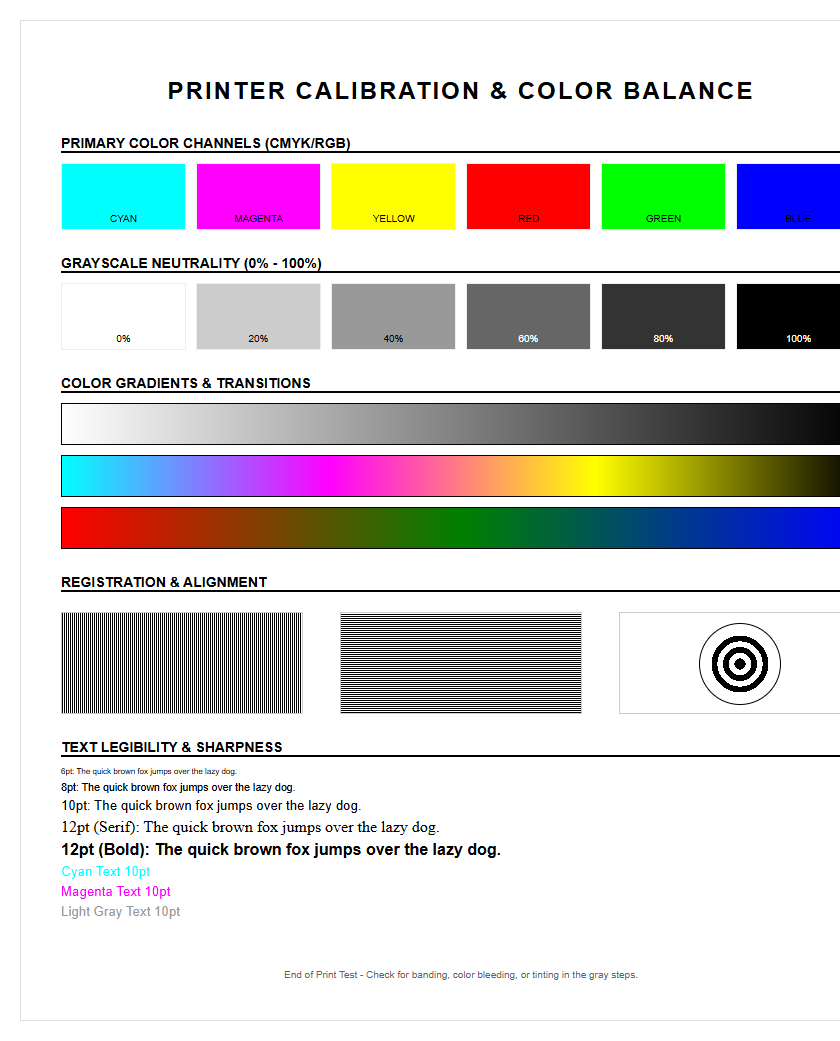
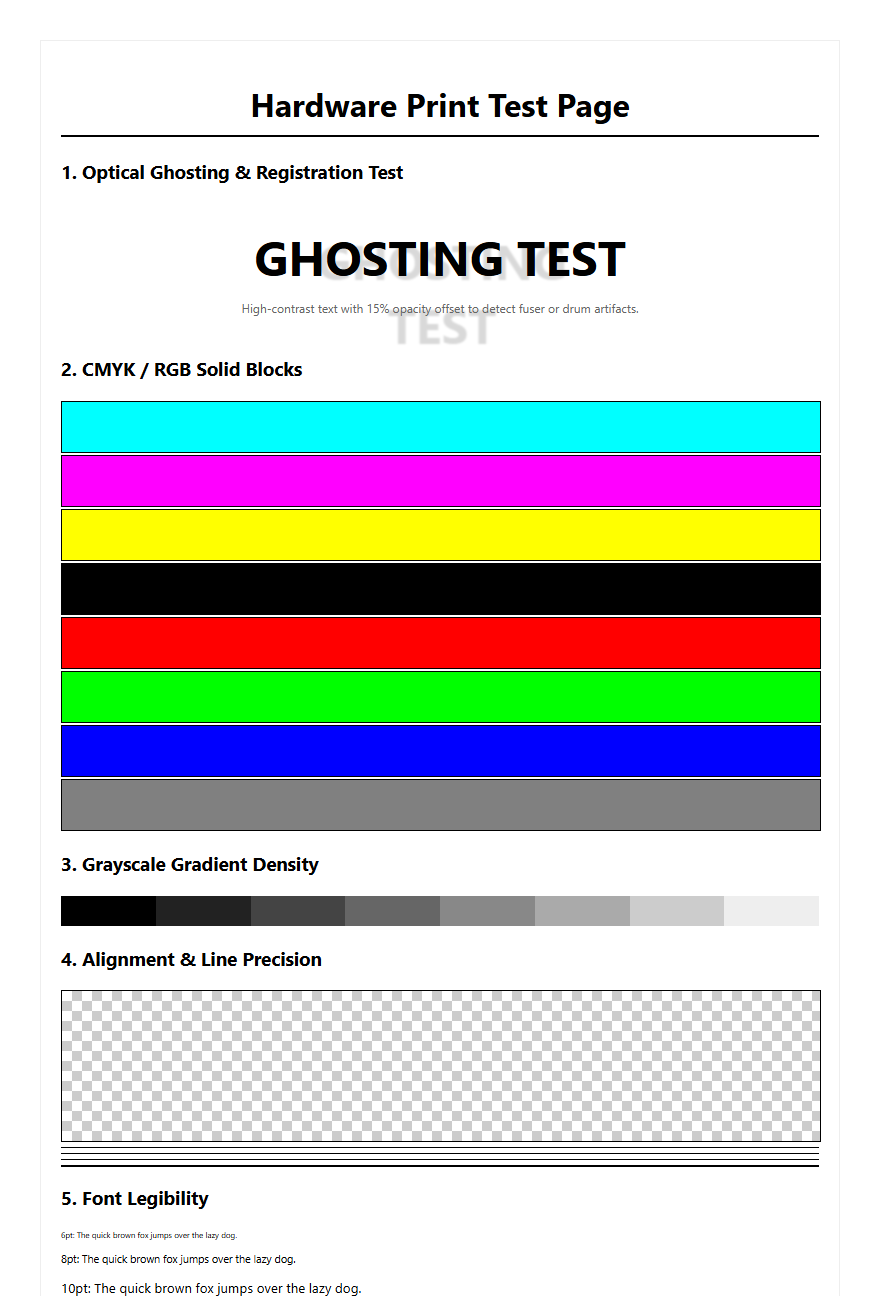
This process ensures that micro-stepping motors are synchronized with the inkjet timing. In laser printers, this calibration focuses on "Color Registration," ensuring the Cyan, Magenta, Yellow, and Black developers deposit toner precisely on the transfer belt without ghosting or color fringing.
Advanced Firmware Diagnostic Procedures
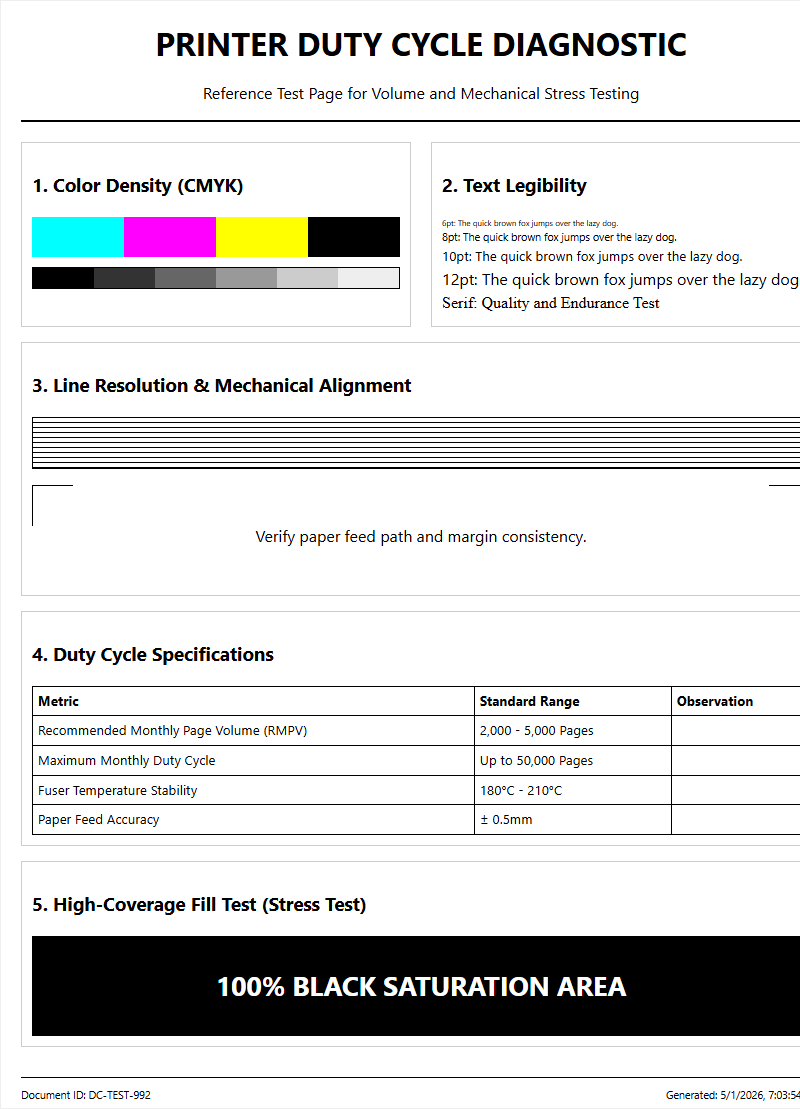
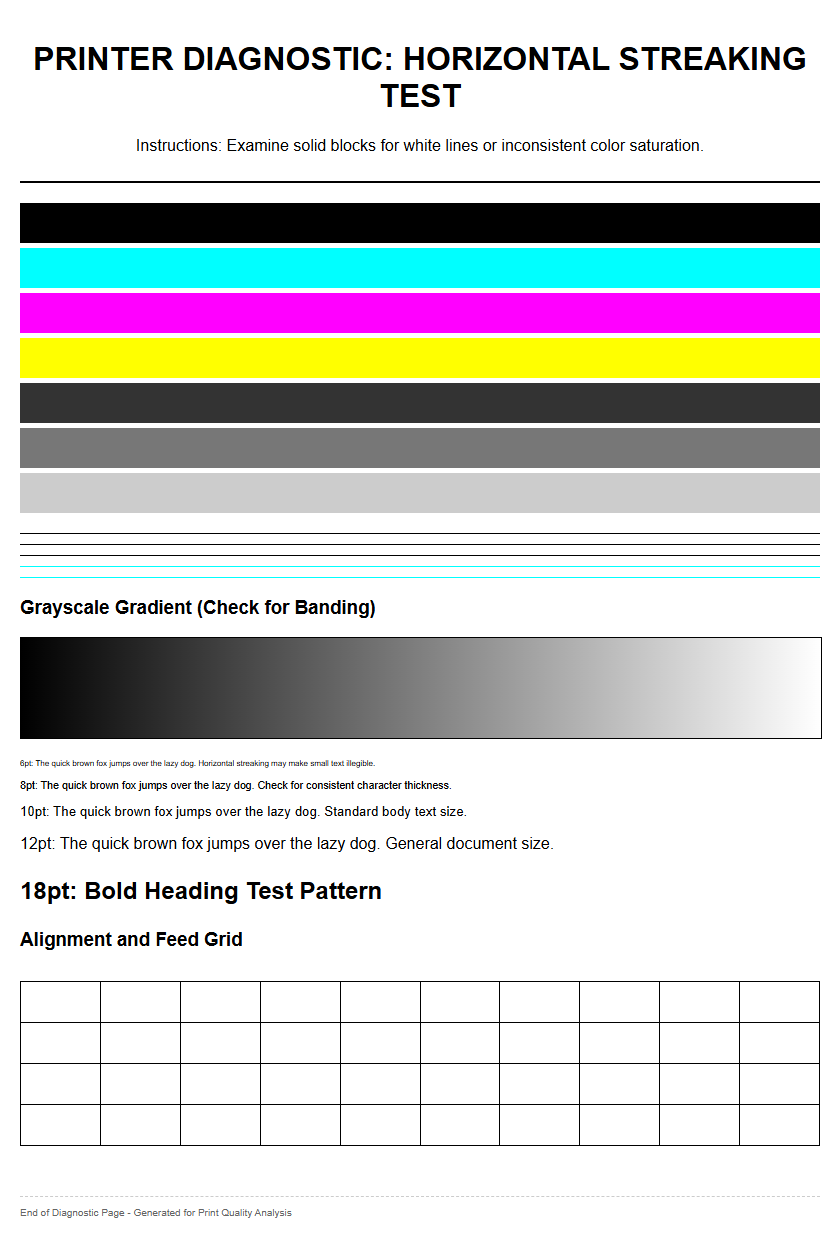
Advanced diagnostics involve testing the printer's core logic board, RAM, and communication ports. Within Service Mode, a technician can run an "Engine Test," which prints a series of stripes directly from the hardware, bypassing the formatter board. This determines if a print quality issue is caused by the software/processing or the physical printing engine. Additionally, firmware diagnostics can check for "Checksum Errors" which indicate corrupted system files.
During these procedures, the printer may be placed in a "Flash Mode" to receive a forced firmware downgrade or a recovery partition boot. This is often necessary when a standard firmware update is interrupted by a power failure, resulting in a "bricked" device. By monitoring the diagnostic logs, technicians can identify specific integrated circuit (IC) failures or packet loss in the internal network card. These high-level tests are the final step before deciding to replace a main logic board or the entire unit.
Factory Hard Reset Implementation Guide
A Factory Hard Reset is the most comprehensive recovery step, erasing all user data, network configurations, and custom firmware settings. Unlike a "Soft Reset" performed via the user menu, a Hard Reset (or NVRAM Initialization) clears the deep system registers where persistent errors reside. For many HP models, this is achieved by holding the lower-right corner of the touchscreen during the boot sequence. For Brother or Canon, it involves specific numerical codes within Maintenance Mode.
| Reset Type | Data Cleared | Usage Scenario |
|---|---|---|
| Soft Reset | User Settings | General Glitches |
| NVRAM Init | All System Logs | Firmware Corruption |
| Cold Reset | Network/Paper Settings | Connectivity Issues |
Executing a hard reset should be a last resort, as it requires the technician to re-calibrate all sensors and re-input the serial number in some cases. It is the primary method for resolving "Permanent Storage Init" hangs and restoring a device to its original "Out of Box" logic state.

Comments